


D5 Render Viewport Is Laggy. How Do I Fix the GPU Bottleneck?
A D5 Render lag problem is usually a GPU bottleneck because D5 Render puts most of its real-time rendering workload on a single graphics card. Before upgrading, first identify where the slowdown happens. If the viewport stutters when you orbit the camera, the GPU is the likely limit. If the delay appears while loading a scene or working in SketchUp or Revit, the CPU or storage drive may be responsible instead. You can also reduce scene load by using instances instead of repeated copies, hiding objects outside the camera view, and lowering viewport resolution while building the scene. If the GPU is already running at full capacity, a more powerful single GPU is the practical upgrade. Adding a second card will not solve the problem because D5 does not support multi-GPU rendering.
A scene can feel perfectly smooth when you first open it. Then you add trees, furniture, materials, and detailed assets, and suddenly moving the camera feels like dragging it through mud. Before buying another graphics card, check how D5 handles multiple GPUs, because that determines where your upgrade budget will actually help.
Table of Contents
Find Out What Is Actually Bottlenecking
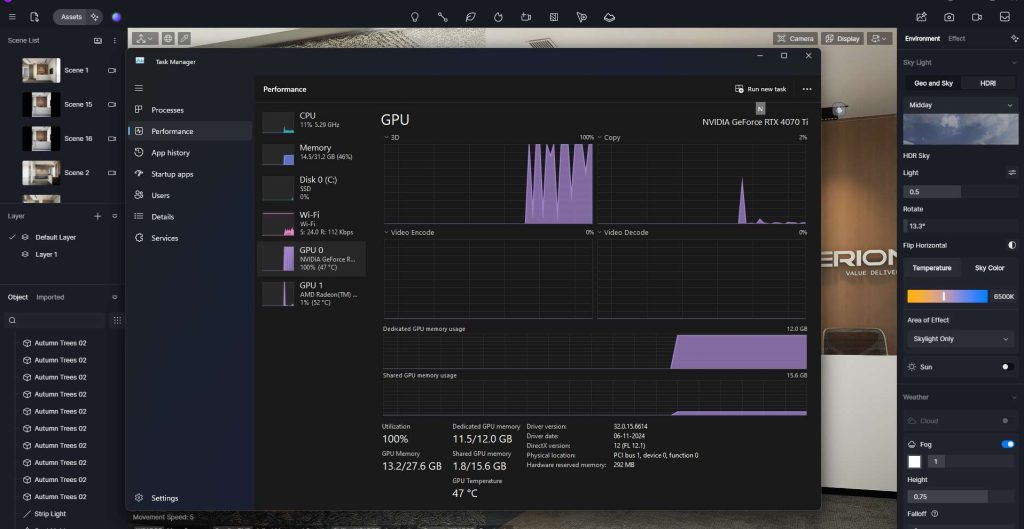
Open Task Manager or your GPU monitoring tool while you work in D5 Render. If GPU usage stays close to 100% when you orbit the camera, you are likely dealing with a GPU bottleneck and a typical D5 Render lag problem.
If the GPU remains mostly idle while the viewport still feels slow, look elsewhere. Scene loading and host applications can point to the CPU, while slow asset reads may indicate a storage bottleneck.
Full VRAM can produce a different kind of D5 Render lag. Instead of slowing down evenly, the viewport may freeze or stutter in short bursts as data moves between memory and storage.
Symptoms and Their Likely Bottlenecks
| Symptom | Most Likely Bottleneck | What to Do |
| Stuttering when orbiting the camera, GPU near 100% | GPU | Reduce scene load or use a more powerful GPU |
| Short bursts of stuttering in a very heavy scene | VRAM is full | Reduce texture sizes, use instances, hide objects outside the frame |
| Slow when opening or syncing a scene | CPU or storage drive | Use a higher-clocked CPU and an NVMe drive |
| Slow performance inside the host app (Revit/SketchUp) | Host app CPU | Optimize the original model rather than treating it as a D5 problem |
| Smooth locally but laggy when using a remote machine | Network latency | Check the network connection and choose a nearby server |
Cut the Scene Load Before You Buy Hardware
Before spending money on new hardware, reduce the amount of work D5 Render has to handle. A lighter scene can often make a noticeable difference to D5 Render lag.
- Use instances instead of copy-paste copies. Instances reuse the original geometry, which is especially effective for trees, furniture, and repeated details.
- Hide objects that are outside the camera view before rendering.
- Lower the viewport display resolution while building, then increase it for final checks.
- Reduce texture sizes for distant objects.
- Update your GPU driver, and check that D5 is using the dedicated GPU rather than integrated graphics on a dual-GPU laptop.
When the Card Really Is the Limit
If you have optimized the scene and the GPU still stays near full usage, you need a faster GPU rather than more GPUs. D5 does not use multiple GPUs for a single working session.
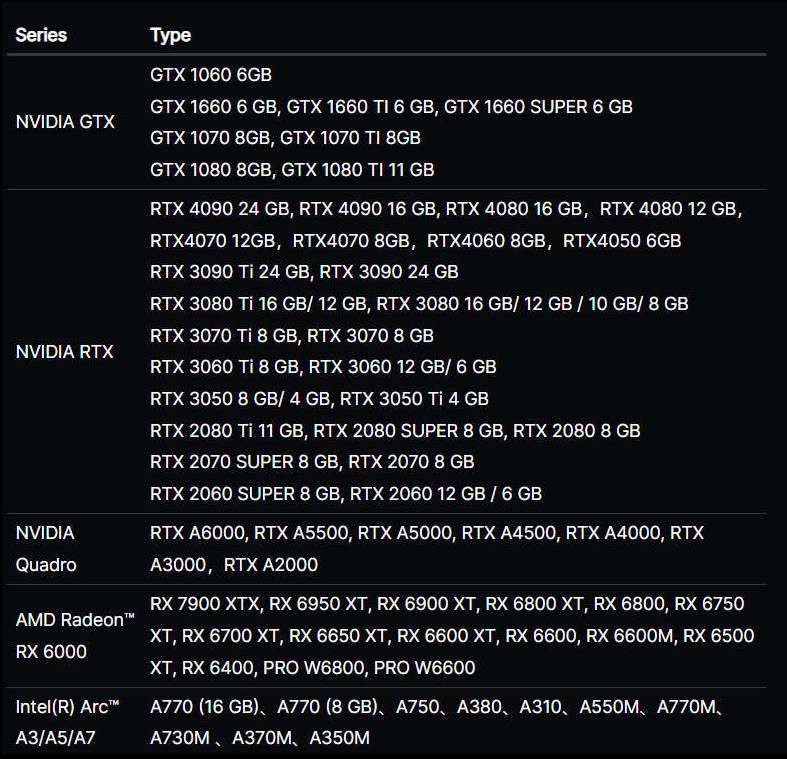
When choosing an upgrade, focus on the ray-tracing performance of one GPU and the VRAM capacity available on that same card. Both directly affect how comfortably D5 handles demanding scenes.
A D5 Cloud Workstation Option
D5 is a live, interactive application, so a typical SaaS render farm is not designed for this kind of workflow. A remote desktop with a powerful GPU is a more suitable option when your local card has reached its limit. A service such as iRender provides Windows machines with an RTX 4090 24GB for D5, which can help reduce D5 Render lag without replacing your entire computer.
The limitation is network latency. A remote GPU can remove the local hardware bottleneck, but viewport interaction still depends on the connection between your computer and the remote machine. If your network is unstable or has high latency, the viewport may continue to feel sluggish even when the server GPU has plenty of unused capacity.
Your renders, your rules. Take control of your VFX workflow with iRender’s dedicated GPU servers. Render with iRender →
FAQ
Why is my D5 Render viewport so laggy?
A laggy D5 Render viewport is often caused by a GPU that cannot keep up with the scene. Check GPU usage while moving the camera. If it stays near 100%, the GPU is likely the bottleneck. If GPU usage remains low, check your CPU, storage drive, and available VRAM. Heavy geometry, large textures, and complex scenes can also increase the workload.
Will a better GPU fix D5 Render lag?
A more powerful GPU can significantly improve viewport performance when the current card is already running at full capacity. However, upgrading the GPU will not solve every slowdown. If the problem comes from scene loading, the host application, storage, or network latency, a faster graphics card may have little effect. Before upgrading, monitor the system and identify which component is reaching its limit.
Does D5 Render use the CPU or GPU?
D5 Render relies heavily on the GPU for real-time rendering, so GPU performance and VRAM have a major impact on viewport responsiveness. The CPU still handles other tasks, including scene loading and parts of the overall workflow. If the GPU is near full usage while the camera stutters, the graphics card is likely the main bottleneck.





Pingback:Karma XPU Needs a Strong CPU Too - VFXRendering | 10 September, 2026
|