


Enscape Video Export on Cloud GPU and the VR Limitation
Enscape can run on a cloud machine, but the setup needs to match the way the software works. Because Enscape is a real-time application that runs inside host software such as Revit or SketchUp, a typical SaaS render farm is not suitable. Instead, you need a dedicated GPU assigned directly to the remote machine through GPU passthrough. Chaos notes that shared GPU resources can prevent Enscape from starting properly or lead to poor performance. For Enscape cloud rendering, this setup is especially useful when exporting video, since Enscape video export can place a heavy rendering load on the GPU. There is one important limitation. Live VR through a standard remote desktop is not a practical setup because the headset remains connected to your local computer while the scene runs remotely. Cloud VR requires specialized XR streaming infrastructure, such as NVIDIA CloudXR, rather than a standard remote rendering machine.
You have a walkthrough video to export before tomorrow morning, but your workstation is struggling through every frame. Moving the job to the cloud sounds like an obvious solution. With Enscape, it can work well, although you need a cloud workstation with the right GPU setup rather than a conventional render farm. VR also needs separate consideration because live headset streaming requires specialized XR infrastructure.
Table of Contents
Why Enscape Needs a Remote Desktop, Not a Render Farm
Enscape is a real-time plugin that runs inside a host application such as Revit, SketchUp, Rhino, Archicad, or Vectorworks. It does not provide a standalone scene file that a typical render farm can process.
For Enscape cloud rendering, the practical setup is a cloud virtual machine or remote workstation. You install the host application and Enscape there, then work with the project much like you would on your local computer.
The hardware setup matters. Chaos recommends a dedicated GPU with its own VRAM, while shared GPU resources can cause Enscape to fail or perform poorly. Integrated graphics are also unsuitable for ray tracing, so the remote machine needs a proper dedicated GPU.
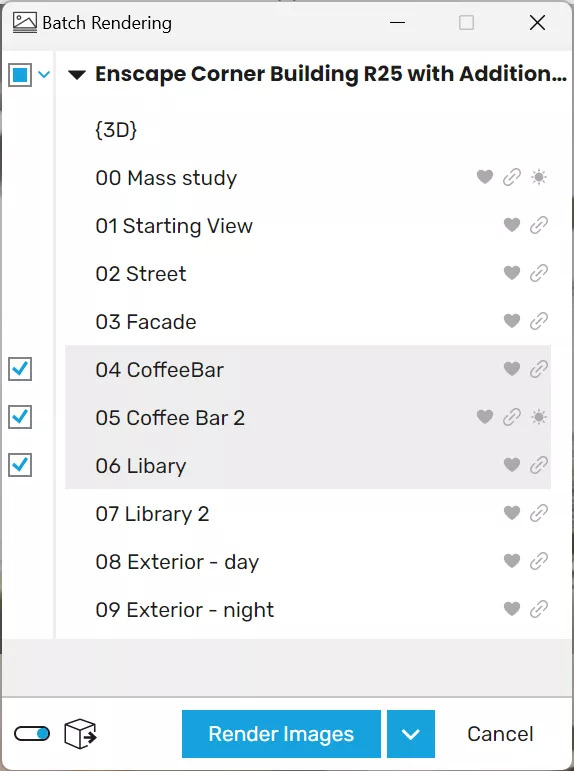
Video Export Is Where Cloud Actually Pays Off
Video export is a demanding batch task because the system must render many frames, often at high resolution and quality. This makes Enscape video export a strong candidate for a more powerful cloud machine.
Your local workstation can remain available for other work while the remote machine handles the export.
For longer videos, you can split the sequence into several sections and export each section on a separate machine. For example, a 4,000-frame Full HD walkthrough that takes 60 minutes per 1,000 frames would take about 240 minutes on one machine. With four machines, each handling 1,000 frames, the rendering work can finish in roughly 60 minutes, excluding setup, file transfer, and final assembly.
What Runs Well on a Cloud Machine, and What Does Not
| Enscape Task | On a Cloud Remote Desktop | Notes |
| Video / animation export | Good | A demanding batch task that suits this setup well |
| High-resolution still image export | Good | No need for continuous interaction |
| Panorama / standalone EXE export | Good | Uses the same system requirements as a regular Enscape setup |
| Scene building and material editing | Possible | Performance depends on connection latency |
| Live VR session with a headset | Not suitable through standard remote desktop | Requires dedicated XR streaming infrastructure such as CloudXR |
The VR Limitation, Explained Properly
VR is demanding because Enscape renders a separate view for each eye while maintaining a high frame rate, typically around 90 fps. Even small amounts of network latency can become noticeable through a headset.
With a standard remote desktop, the headset remains connected to your local computer while the scene is rendered on the server, so the data path is not designed for live VR. However, dedicated XR streaming technologies such as NVIDIA CloudXR are built to stream VR from a remote machine to a headset. This requires specialized infrastructure, which is different from simply renting a render machine. Chaos also discusses this approach for cloud-based VR workflows.
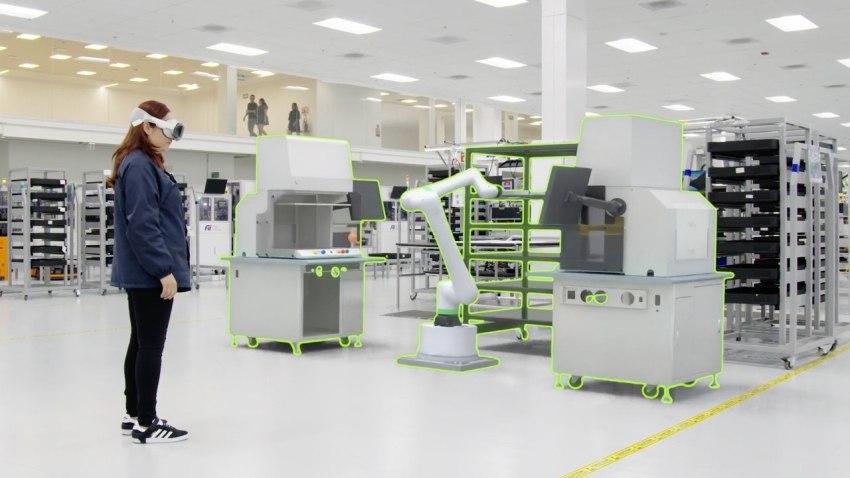
VR mode is not available in Enscape for Mac. For smooth VR, Chaos recommends a GPU around the RTX 4070 Ti class or higher with at least 12GB of VRAM.
For most workflows, cloud machines make more sense for video export and heavy stills, while a capable local GPU remains useful when you regularly present VR on site.
Enscape on a Cloud Workstation
Enscape is a live application, so a SaaS render farm is not the right fit. A cloud remote desktop with a dedicated GPU works better. iRender offers Windows machines with an RTX 4090 24GB, which suits Enscape video export and high-resolution stills.
The limitation is VR. A remote machine can handle heavy rendering, but it does not replace a local setup for live VR with a headset. If VR presentations are a regular part of your workflow, keep a capable local GPU while using cloud resources for demanding exports.
Your renders, your rules. Take control of your VFX workflow with iRender’s dedicated GPU servers. Render with iRender →
FAQ
Can you run Enscape on a cloud machine?
Yes. Enscape can run on a cloud machine when you use a remote desktop with a dedicated GPU and enough VRAM. The host application and Enscape must be installed on that machine, just as they would be on your workstation. This Enscape cloud rendering setup works well for video export and high-resolution stills, although interactive work can feel slower when network latency is high.
Can I use Enscape VR through a remote desktop?
A standard remote desktop is generally not suitable for live Enscape VR because the headset remains connected to your local computer while the scene is rendered remotely. VR also needs very consistent frame delivery and low latency. Specialized XR streaming systems, such as NVIDIA CloudXR, can support cloud-based VR, but they require dedicated infrastructure rather than a typical remote workstation.
How do I speed up Enscape video export?
Use a stronger GPU and reduce unnecessary scene load before exporting. For long animations, split the frame range into several sections and render each section on a separate cloud machine. The sections can then be joined in your editing software. This approach can reduce the total waiting time significantly, especially for high-resolution Enscape video export.
See more: How to Prepare and Package a VFX Scene for Any Render Farm


Pingback:Karma XPU Will Never Run Your VEX Shaders - VFXRendering | 11 September, 2026
|