


KeyShot CPU vs GPU Rendering: Which Is Better for Animation?
KeyShot gives you two main rendering paths for animation, and the better choice usually comes down to scene size and available hardware. GPU Mode can deliver much higher throughput when the scene fits comfortably into VRAM, which becomes especially valuable across hundreds of frames. CPU rendering uses system RAM and can handle larger scenes, although each frame may take longer. On Windows, NVIDIA RTX hardware is the safest GPU choice, while AMD and Mac GPU support has remained experimental and in Beta in current KeyShot Studio requirements. For a practical Keyshot CPU vs GPU decision, test a representative frame first, then check what happens when the scene approaches or exceeds available GPU memory.
A still image can hide a performance difference because a few extra minutes may not change your schedule. Animation multiplies that difference across every frame. A 300-frame sequence can turn a small per-frame gap into several hours of additional rendering time. That is when a hardware choice becomes a production decision rather than a benchmark comparison.
Table of Contents
They Are Not the Same Renderer
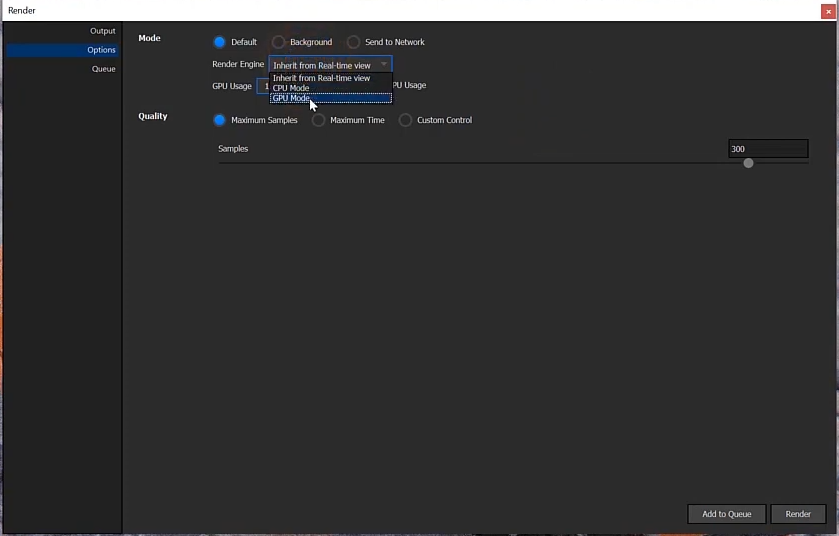
KeyShot started as a CPU-based renderer, while GPU rendering arrived with KeyShot 9 through NVIDIA RTX and OptiX. The two modes use somewhat different algorithms because GPUs perform best when work can be processed in highly parallel, uniform patterns. That design helps GPU Mode achieve much higher throughput, although the rendering behavior is not identical to the CPU path.
For a Keyshot CPU vs GPU comparison, this means we should not judge a full animation from a single speed test alone. Render a representative frame in both modes and compare the image as well as the render time. This is especially important when the scene uses features or geometry that have different support between CPU and GPU Mode.
Animation Decision Table
| Situation | Recommended | Why |
| Scene fits within VRAM, long multi-frame sequence | GPU | The per-frame speed advantage multiplies across the number of frames |
| Large assembly exceeds VRAM | CPU | System RAM is usually much larger than GPU VRAM |
| Working on macOS | CPU | GPU Mode support on macOS is still experimental and in Beta |
| Need a quick preview | GPU | Better suited to fast internal review iterations |
| Using a feature not supported in GPU Mode | CPU | Check Luxion’s supported feature list before committing to GPU rendering |
The VRAM Question That Decides Overnight Jobs
Animation jobs often run unattended, so the important question is not only which mode is faster. We also need to know what happens when a frame exceeds available GPU memory. KeyShot states that if the GPU runs out of memory, rendering reverts to CPU mode.
The safest approach is to measure peak VRAM usage on the heaviest frame before sending the full sequence. Do not rely on the first frame. If the scene is already close to the memory limit, assume a later frame could cross it because the visible content and loaded data can change throughout the animation.
Hardware That Matches Your Choice
Whether you choose CPU or GPU rendering, the hardware priorities are quite different.
- CPU mode: Focus on core count and CPU speed, while making sure system RAM is large enough for the biggest scene. KeyShot’s current hardware guidance emphasizes high core counts and sufficient RAM for rendering machines.
- GPU mode: VRAM determines which scenes can fit, while GPU performance affects render speed. Multiple GPUs can increase throughput when the workload is distributed across them.
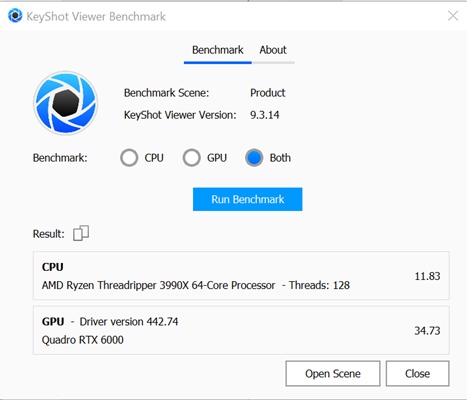
For a Keyshot CPU vs GPU comparison, Luxion’s older benchmark gives a useful reference point rather than a universal current performance ratio. In its test, an AMD Threadripper 3990X scored 11.83, while an NVIDIA Quadro RTX 6000 scored 34.73 on the same product scene, making the GPU roughly three times faster in that specific setup. The result shows why GPU rendering can be attractive for animation, but hardware generation and scene behavior can change the outcome significantly.
Memory also needs a closer look. Older KeyShot documentation describes NVIDIA NVLink configurations that could provide shared GPU memory, but this should not be generalized to modern multi-GPU systems. Current RTX generations such as the RTX 4090 and RTX 5090 do not support NVLink, so adding cards does not automatically give a single scene access to their combined VRAM. Check your exact GPU generation and KeyShot version before planning around memory scaling.
Remote Testing Before You Commit
The safest way to choose between CPU and GPU rendering is to test the same heavy frame in both modes, then multiply the render time by the number of frames. An IaaS service such as iRender lets you rent Windows workstations with GPUs such as the RTX 4090 and RTX 5090, along with CPUs including AMD Ryzen Threadripper Pro 3955WX and 5975WX. You can test the workload before buying hardware.
If the test points you toward CPU rendering because the scene is too large for GPU memory, a multi-GPU configuration may not be the best use of the budget. The extra GPUs cannot solve the memory limit for one oversized scene. In that case, prioritize a workstation with stronger CPU performance and plenty of system RAM.
Maximum Speed – Absolute Freedom. Take control of your VFX workflow with iRender’s dedicated GPU servers. Render with iRender →
FAQ
Is KeyShot GPU rendering faster than CPU?
In many supported scenes, GPU rendering can be significantly faster than CPU rendering. Luxion’s older benchmark showed an NVIDIA Quadro RTX 6000 rendering a product scene at roughly three times the speed of an AMD Threadripper 3990X. The exact difference varies with hardware, scene complexity, and rendering mode, so use the benchmark as a reference rather than a fixed rule.
Can I use KeyShot GPU rendering on a Mac?
Yes, but GPU support on macOS has limitations. Current KeyShot Studio requirements list GPU Mode for AMD GPUs and macOS as experimental and in Beta. NVIDIA RTX hardware remains the preferred choice for GPU-accelerated rendering on supported systems. If you are working on a Mac, test your specific KeyShot version and scene before committing a long animation to GPU rendering.
What happens if a KeyShot scene exceeds GPU VRAM?
If the GPU runs out of memory during rendering, KeyShot can revert to CPU rendering. This allows the frame to continue using system RAM, but rendering can become much slower. For an animation, the change may affect only certain heavy frames. Test the frame with the highest expected memory usage before submitting the full sequence.
Which mode should I use for a KeyShot animation?
For Keyshot CPU vs GPU, start with GPU rendering when the scene fits comfortably within VRAM and your hardware is supported. The speed advantage becomes more valuable as the frame count increases. Choose CPU rendering when the scene exceeds GPU memory or relies on features unavailable in GPU Mode. Always test a representative heavy frame before rendering the full animation.
See more: Top 3 render farms for KeyShot in 2026






No comments