


Driver and CUDA Requirements That Break Karma XPU on a Farm
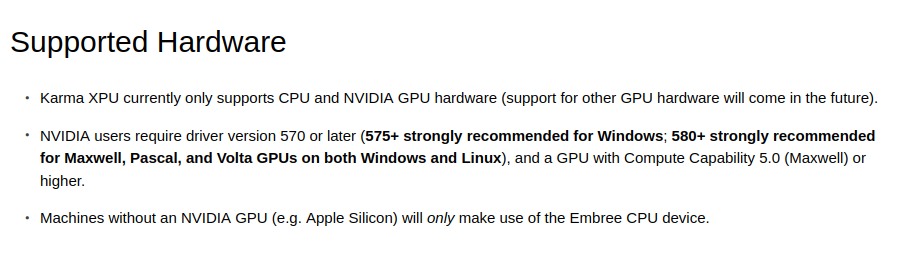
Karma XPU needs a compatible driver environment for the Houdini build running on each render node. On a farm, the most common problem is not a broken machine. It is inconsistency between nodes, especially when NVIDIA drivers differ. This is why checking Karma XPU driver requirements should be part of your farm setup. SideFX currently requires NVIDIA driver 570 or later, with 575+ strongly recommended on Windows and 580+ strongly recommended for Maxwell, Pascal, and Volta GPUs on both Windows and Linux. The GPU must also support Compute Capability 5.0 or higher. Karma XPU CUDA compatibility matters as well, because the GPU environment must match what the Houdini build expects. There is another issue that can easily go unnoticed. Karma XPU supports CPU and NVIDIA GPU devices, so a node without a valid NVIDIA GPU can quietly fall back to Embree on the CPU. Enabling Cancel Render on No Working GPU Devices exposes this problem before it affects a sequence.
Using the same scene across multiple farm nodes can produce very different render times. Node 3 and Node 7 might take four times longer than the others, even though the final images look correct and the logs show no obvious errors. With Karma XPU, that pattern can mean those machines are rendering through the CPU instead of the expected GPU.
Table of Contents
The Failure Mode Nobody Sees
Karma XPU can use CPU and GPU devices together, but it does not require an NVIDIA GPU to complete a frame. When no valid NVIDIA GPU is available, XPU can use the Embree CPU device and still finish the render.
That behavior is useful on a workstation, but it becomes a silent farm problem. The rendered image can remain consistent because XPU is designed to produce the same result across different device combinations, while the render time changes dramatically.
Image checks may not reveal anything. Render-time data will.
Driver Matrix by GPU Series
| Scenario | Driver Requirement | Notes |
| Minimum for all GPUs | 570 or later | XPU cannot use the GPU below this driver version |
| Windows in general | 575+ strongly recommended | Explicitly recommended by SideFX |
| Maxwell, Pascal, Volta | 580+ strongly recommended | Applies to both Windows and Linux |
| Compute Capability | 5.0 (Maxwell) or later | Older GPUs are not supported |
| No NVIDIA GPU | Embree CPU only | No error is reported, but rendering is slower |
How to Audit Every Node Before a Sequence
Before rendering a full sequence, run a short audit across every node. It helps catch driver, GPU, and Houdini build differences before they affect production.
- Check the NVIDIA driver version on every node and compare it with the required matrix. Record the results in a simple table so differences are easy to spot.
- Check the GPU’s Compute Capability on each node. Older cards may not meet the minimum requirement, even when the driver version looks correct.
- Run a short test frame and compare render times across nodes. A node that takes several times longer deserves further investigation.
- Test the suspected node with KARMA_XPU_DEVICES. Set it to optix to force GPU rendering. If the render cannot start, the node does not have a usable NVIDIA GPU.
- Enable Cancel Render on No Working GPU Devices in the render settings. This makes GPU availability failures visible instead of allowing a silent CPU fallback.
- Check the Houdini build on every node. Even when the Karma XPU driver requirements are satisfied, different builds can behave differently. Also verify the Karma XPU CUDA environment when troubleshooting GPU initialization.
Standardize, Then Keep It Standard
Once the audit is complete, standardize the environment and keep the same configuration throughout production. A consistent setup makes future troubleshooting much easier.
- Choose one Houdini build and driver combination, then document it in your pipeline.
- Set up new machines with the same combination instead of automatically installing the newest versions.
- Recheck the requirements after every Houdini upgrade, because driver requirements can change with the build.
- Avoid updating drivers during an active sequence, since different nodes may then run with different environments.
- Keep the documented Karma XPU driver requirements available for anyone maintaining the farm.

iRender: Control Comes With Responsibility
With a SaaS render farm using preconfigured nodes, you normally do not control the NVIDIA driver version. If your Houdini build requires a specific driver level, you depend on the farm’s existing configuration. With an IaaS service such as iRender, you control the virtual workstation environment, so you can install the Houdini build and driver combination your project requires and reproduce that setup across additional machines.
That control also means you are responsible for keeping every machine consistent. When several workstations are running the same sequence, one node with a different driver can quietly fall back to CPU rendering. No one standardizes the environment for you, so check the configuration before adding machines to production.
Maximum Speed – Absolute Freedom. Take control of your VFX workflow with iRender’s dedicated GPU servers. Render with iRender →
FAQ
What driver version does Karma XPU need?
Karma XPU requires an NVIDIA driver version of 570 or later, while SideFX strongly recommends 575+ on Windows. For Maxwell, Pascal, and Volta GPUs, 580+ is strongly recommended on both Windows and Linux. Your GPU also needs Compute Capability 5.0 or higher. These Karma XPU driver requirements should be checked across every render node before starting a sequence.
Why do some render nodes take much longer with Karma XPU?
Some nodes can take much longer because Karma XPU silently falls back to CPU rendering when a valid NVIDIA GPU is unavailable. The frame can still finish correctly, so the farm may not report an obvious error. If only a few nodes are several times slower, compare their GPU availability, driver versions, and Houdini builds with the other machines.
How do I check whether Karma XPU is actually using the GPU?
Run a short test frame and compare render times across your nodes. For a suspected machine, set KARMA_XPU_DEVICES to optix to force GPU rendering. If the render fails to start, the node does not have a usable NVIDIA GPU. You can also enable Cancel Render on No Working GPU Devices to expose GPU availability problems immediately.






No comments