


Redshift for Houdini on Cloud GPU
Redshift is a GPU-biased renderer that integrates directly into Houdini, and its memory behavior is one of the biggest differences from Karma XPU on cloud machines. With out-of-core rendering, Redshift can move supported textures and geometry into system memory when a scene exceeds available VRAM, so performance can decline without immediately stopping the render. However, volume grids and VDB data remain limited by GPU memory. Multi-GPU rendering adds another advantage. Redshift can scale close to linearly as you add GPUs, but their VRAM does not merge into one larger pool. Eight GPUs can deliver roughly eight times the throughput, yet a single scene still cannot access eight times the VRAM as one shared space. For Redshift Houdini cloud workflows, this makes multi-GPU workstations attractive, provided your Redshift version, GPU configuration, and license are prepared correctly.
Redshift and Karma XPU can react very differently when the same scene exceeds available VRAM. Karma XPU can fall back to CPU rendering, while Redshift can move supported data outside GPU memory and continue rendering with lower performance. Understanding this behavior helps you choose a cloud workstation that matches your Houdini scenes.
Table of Contents
How Redshift Handles Memory
Redshift handles memory differently from Karma XPU, and this difference becomes especially important when we move a heavy Houdini scene to a cloud GPU workstation. The renderer can keep rendering even when supported data exceeds the available VRAM.
Redshift’s out-of-core system can move supported data into system RAM when the GPU runs short on memory. The renderer then accesses that data as needed, which can reduce performance because system memory is slower than VRAM. Textures are a common example, and Maxon notes that large 4K or 8K texture sets can still work well with out-of-core rendering.
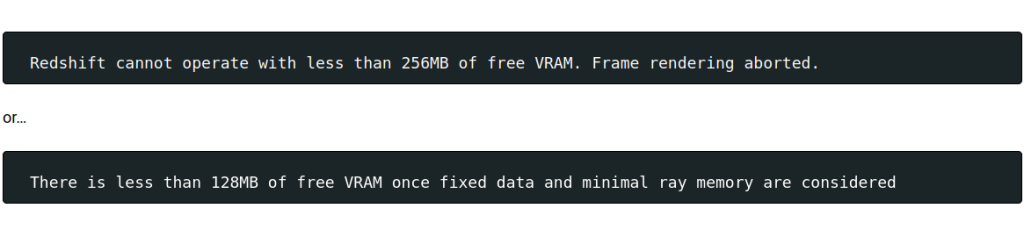
There are important limits. Maxon states that scene assets, sprite node textures, and volume grids or VDB files are not handled by Redshift’s out-of-core system. If these elements exceed the GPU’s available memory, rendering can be aborted. This matters in Houdini because Pyro and VDB-heavy scenes are common. A large texture-heavy scene may continue with slower performance, while a volume-heavy scene can still hit a hard VRAM limit.
Karma XPU behaves differently when GPU memory becomes a problem. That makes memory planning especially important when you choose between the two renderers for heavy Houdini work. For Redshift, more VRAM still provides useful headroom, even though out-of-core rendering can handle some data beyond the GPU limit.
How Redshift and Karma XPU Handle VRAM-Exceeding Scenes
| Scenario | Redshift | Karma XPU |
| Texture exceeds VRAM | Out-of-core, with slower performance | Data is moved, potentially falling back to CPU rendering |
| Geometry exceeds VRAM | Out-of-core geometry | Hardware memory limit reached |
| VDB / volume exceeds VRAM | No out-of-core support | Hardware memory limit reached |
| Multiple GPUs | Near-linear scaling | Multiple GPUs can be used, but VRAM is not pooled |
| VRAM pooled across GPUs | No | No |
Versions, Drivers and the Card in the Machine
When you choose a cloud GPU for Houdini, check the GPU, driver, and Redshift version together. A powerful card such as the RTX 5090 is useful only when the installed Redshift build and driver can recognize it correctly. Maxon’s current requirements also vary by platform, so verify the exact combination before starting a production render.
- NVIDIA GPU: Redshift currently requires CUDA Compute Capability 5.0 or higher, at least 8GB of VRAM, and NVIDIA driver 570 or later. AMD RDNA 2+ and Apple M Series hardware are also supported on their respective platforms.
- Houdini: Maxon lists Houdini 19 or later as a supported host for Redshift, although each Redshift release has its own compatible Houdini builds. Check the compatibility chart before upgrading.
- RTX 5090 / Blackwell: Redshift 2025.3.0 added support for NVIDIA Blackwell 50xx GPUs. Redshift 2025.5.0 also documents Blackwell support and specifies driver 572.16+ on Windows and 570.26+ on Linux.
What Houdini Work Actually Needs From the Machine
The right cloud workstation depends on what your Houdini project asks the machine to do. GPU performance matters, but storage, VRAM, and multi-GPU capacity can become just as important for heavier production scenes.
- Heavy simulation caches: Prioritize disk capacity and read/write speed, since large caches can become a major bottleneck alongside GPU rendering.
- High resolution and many AOVs: Leave additional VRAM headroom for geometry, textures, and multiple output passes.
- Denoising: Keep the setup consistent across the entire sequence so frame-to-frame results remain predictable.
- Faster Redshift rendering: Use multiple compatible GPUs when possible. Redshift can use up to eight GPUs per session, making multi-GPU cloud workstations particularly useful for production rendering.
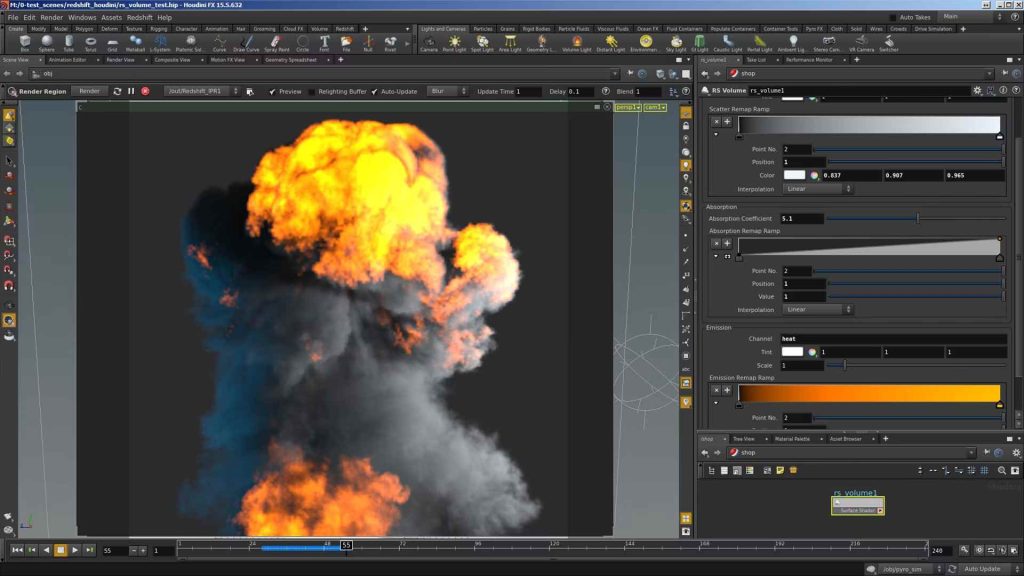
Cloud GPU Setup for Redshift and Houdini
Because Redshift can use multiple GPUs efficiently, a cloud workstation with several cards can be a practical choice for Houdini rendering. For example, iRender offers configurations with up to eight RTX 4090 24GB GPUs on a server, as well as RTX 5090 32GB options when you need more VRAM per card. For a Redshift Houdini cloud workflow, the GPU count and VRAM capacity should match the type of scenes you render most often.
Redshift and Houdini both require their own licenses, so an IaaS workstation does not remove that responsibility. You bring your licenses to the rented machine and configure them yourself. A managed render farm may handle licensing as part of its service, so check the licensing model before choosing between a cloud workstation and a managed farm.
Maximum Speed – Absolute Freedom. Take control of your VFX workflow with iRender’s dedicated GPU servers. Render with iRender →
FAQ
Can I render Redshift for Houdini in the cloud?
Yes. Redshift for Houdini can run on cloud GPU workstations, provided the machine meets the required GPU, driver, Houdini, and Redshift versions. Redshift Houdini cloud workflows are especially useful when you need more GPU capacity than your local workstation provides. You can choose single or multi-GPU configurations, while scenes with heavy textures may also benefit from Redshift’s out-of-core rendering.
Does Redshift support multiple GPUs in Houdini?
Yes. Redshift supports multi-GPU rendering in Houdini, and adding compatible GPUs can provide close to linear scaling for rendering throughput. This makes multi-GPU cloud workstations useful when you want faster production renders. However, the VRAM of separate cards does not merge into one shared pool. A system with several GPUs therefore improves throughput, but each GPU still has its own memory limit.
Does Redshift out-of-core work with VDB volumes?
No. Redshift’s out-of-core system does not support VDB or volume grids. Supported textures and geometry can move into system RAM when VRAM is exhausted, but volume data remains limited by GPU memory. This matters for Houdini Pyro scenes, where large VDB grids can quickly consume VRAM and cause rendering to hit the available memory limit.
What are the GPU requirements for Redshift?
For NVIDIA GPUs, Redshift requires CUDA Compute Capability 5.0 or higher, at least 8GB of VRAM, and an NVIDIA driver version of 570 or later under the current requirements. Redshift also supports AMD RDNA 2+ on Windows and Apple M Series hardware on Mac. For newer GPUs such as the RTX 5090, check the Redshift version and driver compatibility before rendering.
See more: Best Redshift Render Farms in 2026: The RTX 5090 Guide




Pingback:Redshift Multi-GPU Scaling in Houdini: What You Actually Get - VFXRendering | 19 October, 2026
|
Pingback:Best Redshift Render Farms in 2026: The RTX 5090 Guide - VFXRendering | 6 November, 2026
|