


Twinmotion Real-Time Mode Only Uses One GPU. Why?
Twinmotion real-time rendering is designed to use one GPU, and Epic Games explicitly states that adding more GPUs does not accelerate this mode. The deeper reason lies in how modern real-time rendering works. Techniques such as temporal anti-aliasing and upscaling rely on data from previous frames, making it difficult to divide consecutive frames between separate cards. Multi-GPU rendering is available in the Path Tracer under specific hardware and configuration requirements. If you want faster viewports and video exports, a more powerful single GPU is usually a better investment than adding another card. Understanding Twinmotion multiple GPU support helps you avoid spending money on hardware that cannot improve your workflow.
You open Task Manager, launch Twinmotion, and notice one GPU running near full capacity while the second sits almost idle. Your first thought might be a driver problem or an incorrect setting. In many cases, however, both cards are behaving exactly as Twinmotion was designed to use them.
Table of Contents
What Epic Actually Says
Epic Games draws a clear distinction between Twinmotion’s real-time rendering and Path Tracer. Real-time modes, including Standard and Lumen, use a single GPU, so adding another card does not provide a performance boost. The Path Tracer can support multiple NVIDIA GPUs through compatible SLI or NVLink configurations, with reported performance gains ranging from approximately 50% to 200%, depending on the setup. This feature requires Windows 10 version 2004 or later and must be enabled in Preferences. For more context, see our article Twinmotion Path Tracer Is Slow. Does Multi-GPU Help?
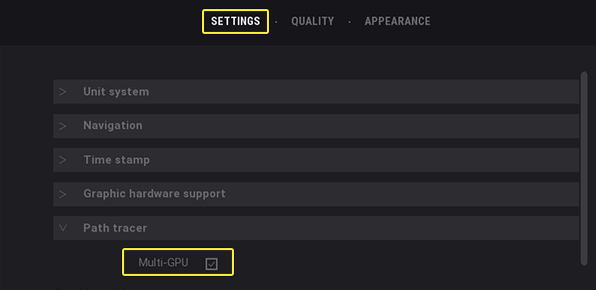
If you want a broader explanation of Twinmotion multiple GPU support, there’s an article discussed detailed overview of how Twinmotion and Unreal Engine handle multi-GPU configurations. You can read it here.
Why Real-Time Rendering Doesn’t Split Across Cards
Older multi-GPU systems sometimes used alternate frame rendering. One GPU rendered odd-numbered frames while the other handled even-numbered frames. This approach worked best when each frame could be rendered independently. Modern real-time rendering is more complicated. Techniques such as temporal anti-aliasing and temporal upscaling use information from previous frames to improve image stability and detail. Epic’s documentation explains that temporal upscalers combine current-frame data with historical information, using depth and velocity buffers to track how the scene changes over time.
This creates a dependency between consecutive frames. Frame N needs information from frame N-1 to produce a stable result. If those frames are processed on separate GPUs, the required history data must be transferred between cards. That communication adds overhead and can erase much of the performance benefit of the second GPU.
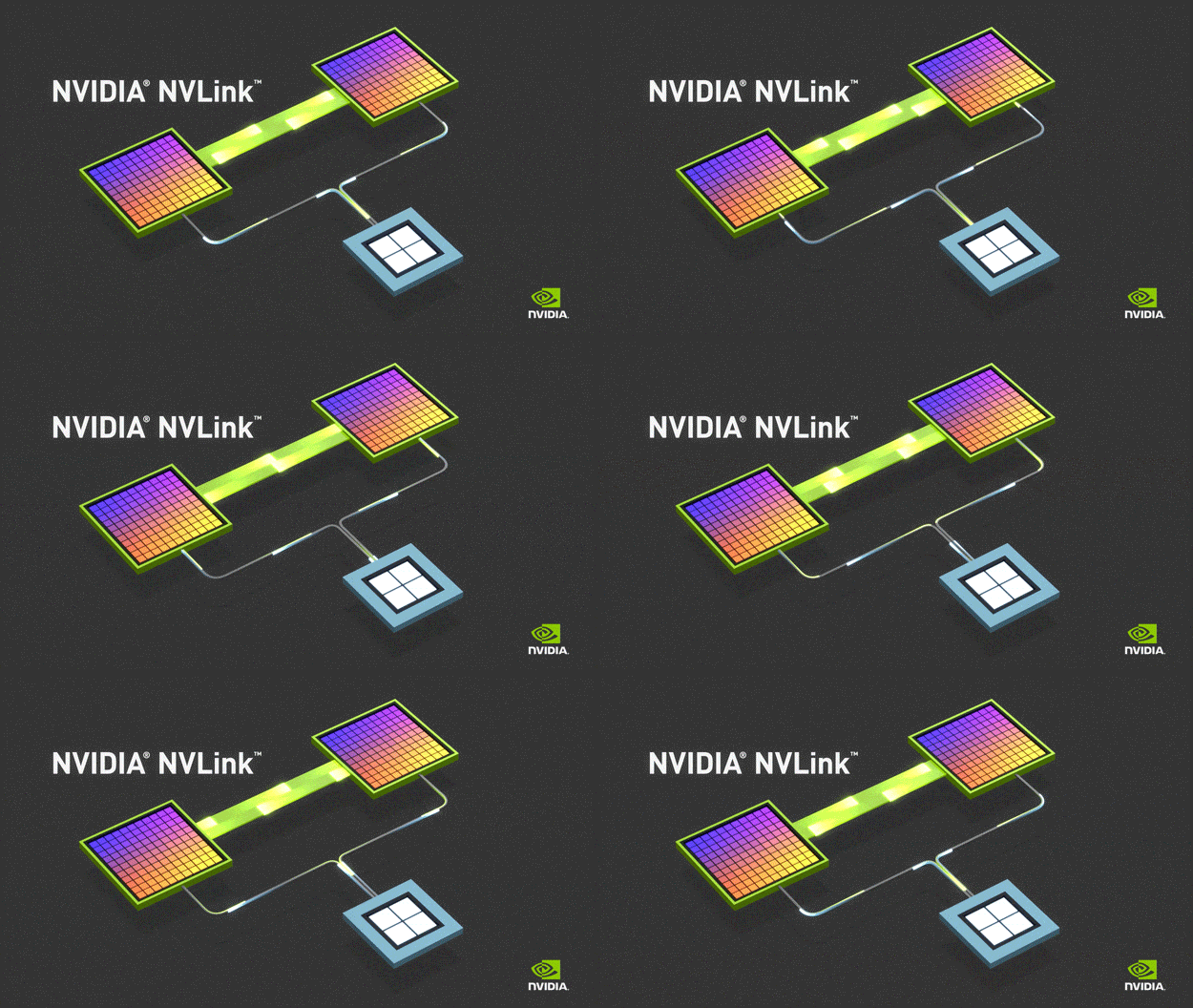
There is also a hardware and software limitation. NVIDIA stopped adding new SLI profiles in January 2021, shifting responsibility toward developers who integrate multi-GPU support directly into their applications. Most real-time applications do not provide this kind of support. Twinmotion’s Path Tracer is a specific exception, with multi-GPU operation requiring compatible SLI or NVLink configurations. Modern GeForce RTX 4090 and RTX 5090 cards do not support NVLink, so installing two of them will not unlock multi-GPU acceleration in Twinmotion’s real-time mode.
How Each Twinmotion Mode Uses GPUs
| Twinmotion Mode | Number of GPUs Used | Requirements | Most Effective Upgrade |
| Real-time Standard | 1 | One GPU | A more powerful GPU |
| Real-time Lumen | 1 | One GPU with enough VRAM for Lumen | A more powerful GPU with more VRAM |
| Path Tracer | Multiple, through SLI or NVLink | SLI, Windows 10 version 2004 or later, and compatible GPUs with bridge support | For RTX 40 and RTX 50 series, choose a more powerful GPU because SLI or NVLink is no longer supported |
| Real-time video export | 1 | Same requirements as real-time Standard | A more powerful GPU or splitting the frame range across separate jobs |
So What Is the Second Card Doing?
In Twinmotion’s real-time mode, the second GPU contributes little or nothing to rendering performance. It can still serve other tasks on the same workstation, such as driving additional displays or running other applications, including GPU renderers that support multiple cards.
To check which GPU Twinmotion is using, open Task Manager, select the Performance tab, and watch GPU activity while moving around the viewport. Laptops often combine integrated Intel graphics with a dedicated NVIDIA or AMD GPU. If Twinmotion uses the integrated GPU by mistake, performance may suffer. Windows may choose a GPU automatically, so check the graphics preference settings and assign Twinmotion to the dedicated card if needed. Epic provides a guide to selecting the dedicated GPU on Windows.
Where to Spend Instead
Twinmotion’s real-time performance depends heavily on the capabilities of a single GPU, including its processing power, memory bandwidth, and VRAM capacity.
Here are the key specifications:
- RTX 4090: 24GB VRAM, 1,008GB/s memory bandwidth, 16,384 CUDA cores, and 128 RT cores.
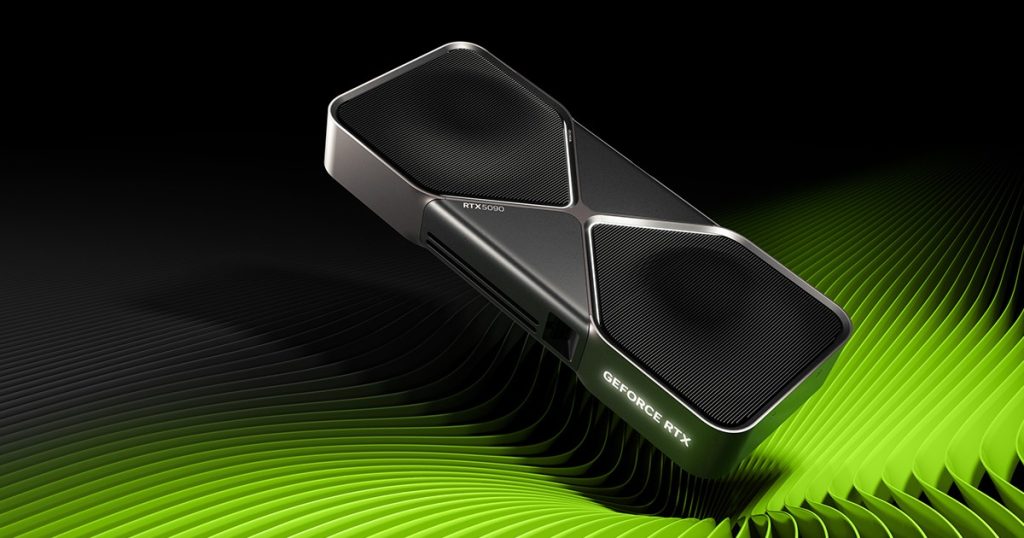
- RTX 5090: 32GB VRAM, 1,792GB/s memory bandwidth, 21,760 CUDA cores, and 170 RT cores.
Compared with the RTX 4090, the RTX 5090 has 33% more VRAM, about 78% more memory bandwidth, 33% more CUDA cores, and 33% more RT cores. These figures describe hardware specifications, not a guaranteed real-world performance increase.
The RTX 5090 offers stronger specifications across all four categories, which makes it an attractive upgrade for demanding Twinmotion projects. VRAM capacity is especially important when working with Lumen and complex scenes. The additional memory gives you more room for scene data and textures, reducing the chance that memory limits will disrupt your workflow.
A Cloud Workstation Service for Twinmotion
Since Twinmotion’s real-time mode relies on one GPU, an IaaS service such as iRender lets you rent a workstation with a single RTX 4090 24GB or RTX 5090 32GB. You connect to the remote machine, install Twinmotion, and work in a familiar desktop environment. This is also a practical way to test your scene on a more powerful GPU before committing to a hardware upgrade.
iRender also offers multi-GPU configurations, but adding RTX 4090 or RTX 5090 cards will not accelerate Twinmotion’s real-time rendering through SLI or NVLink. For this workload, a single-GPU package is usually the more sensible choice. Consider a multi-GPU setup only if you also run other software that can use the additional cards.
Maximum Speed – Absolute Freedom. Take control of your VFX workflow with iRender’s dedicated GPU servers. Render with iRender →
FAQ
Does Twinmotion support multiple GPUs?
Twinmotion multiple GPU support depends on the rendering mode. Real-time modes, including Standard and Lumen, use a single GPU, so adding another card will not improve viewport performance or real-time video exports. The Path Tracer can support multiple NVIDIA GPUs through compatible SLI or NVLink configurations. However, the RTX 4090 and RTX 5090 do not support these technologies, limiting multi-GPU options on modern hardware.
Why is my second GPU at 0% in Twinmotion?
This is normal when Twinmotion runs in real-time mode. The application is designed to render with one GPU, so the second card may remain idle even when the first is fully loaded. You can check GPU activity in Task Manager while navigating the viewport. If Twinmotion is using integrated graphics instead of your dedicated GPU, change the Windows graphics preference to select the intended card.
Can I use SLI with an RTX 4090 or RTX 5090 in Twinmotion?
No. Neither the RTX 4090 nor the RTX 5090 supports NVIDIA SLI or NVLink, so you cannot combine these cards through those technologies for Twinmotion’s Path Tracer. Installing two cards will not pool their VRAM or accelerate real-time rendering. For better performance, choose a more powerful single GPU with enough memory for your scene.
See more: Twinmotion Path Tracer Is Slow. Does Multi-GPU Help?






No comments