


D5 Render on Cloud GPU for Animation and Walkthroughs
D5 Render is a real-time application that runs live on Windows and relies on GPU ray tracing, so D5 Render cloud GPU setups work differently from traditional render farms. Instead of uploading a scene for an automated render queue, you need a remote Windows workstation with a powerful GPU, essentially an IaaS setup where you control the application yourself. A SaaS render farm is therefore not a natural fit because D5 is an interactive application rather than a scene file that can simply be submitted for rendering. D5 also does not currently support parallel or interconnected multi-GPU operation, so adding more graphics cards does not accelerate one D5 session. A single high-performance GPU such as the RTX 4090 24GB is a practical target for demanding animation and walkthrough work.
You notice the problem quickly when a 4K walkthrough starts pushing your workstation hard. The fans become loud, the viewport begins to stutter, and heavier vegetation or interior details make real-time work increasingly difficult. Because D5 relies primarily on one dedicated GPU, adding another card will not rescue that session when the main GPU runs out of room. That is why choosing a cloud GPU for D5 is narrower than choosing a conventional rendering service.
Table of Contents
Why D5 Needs a Remote Desktop, Not a Render Farm
D5 Render is a live real-time application that requires Windows and a GPU capable of hardware ray tracing. Its rendering technology is built around Windows DXR, with D5 listing compatible NVIDIA, AMD, and Intel GPUs. This makes D5 fundamentally different from software designed to submit scene files to an automated render queue.
With a traditional SaaS render farm, you upload a project and let the service handle the rendering process. D5 does not work that way because you need to open the application, load your project, adjust the scene, move through the viewport, and control the render interactively. For D5 Render cloud GPU, the practical solution is therefore an IaaS remote desktop: you connect to a Windows machine, install D5 Render, and operate it much like your own workstation. D5’s documentation also states that it primarily uses dedicated GPU memory and does not support multi-GPU parallel or interconnected operation, so a single powerful GPU is the more relevant configuration for one D5 session.
The Single-GPU Truth
D5 Render does not support multi-GPU parallel or interconnected operation, so one high-performance graphics card is generally preferable to several weaker cards.
For cloud use, renting eight GPUs will not make a single D5 session eight times faster. Each D5 session primarily uses the dedicated memory of one GPU, so multiple cards are more useful when you run several independent D5 sessions at the same time, such as rendering different shots or projects in parallel. In other words, four single-GPU machines can handle four D5 jobs simultaneously, while putting four GPUs into one machine does not accelerate one D5 session in the same way.
VRAM also remains tied to each individual graphics card, so adding cards does not simply create one larger memory pool for a D5 scene.
VRAM and Heavy Scenes
D5 uses dynamic resource streaming to load visible assets as needed, which helps keep memory usage under control. However, a particularly detailed scene with dense vegetation, large textures, furniture, and other assets can still exceed the available VRAM on the graphics card.
An RTX 4090 with 24GB of VRAM is a strong target for many demanding D5 projects. If a scene approaches or exceeds that limit, scene optimization becomes important. Using instances instead of duplicated objects can reduce memory pressure, while hiding objects outside the camera view can also keep unnecessary assets from consuming resources.
Animation and Walkthrough Render Times
D5 Render is particularly well suited to walkthroughs and animation because you can preview the scene interactively before producing the final sequence. However, there is no single render time for a 1080p, 2K, or 4K animation. The result depends on the animation length, frame rate, scene complexity, lighting, materials, and quality or sampling settings. A short architectural walkthrough with a relatively simple scene can finish much faster than a long sequence filled with vegetation, detailed interiors, reflections, and other demanding effects. GPU performance also matters because D5 relies heavily on the graphics card during real-time rendering and animation output.
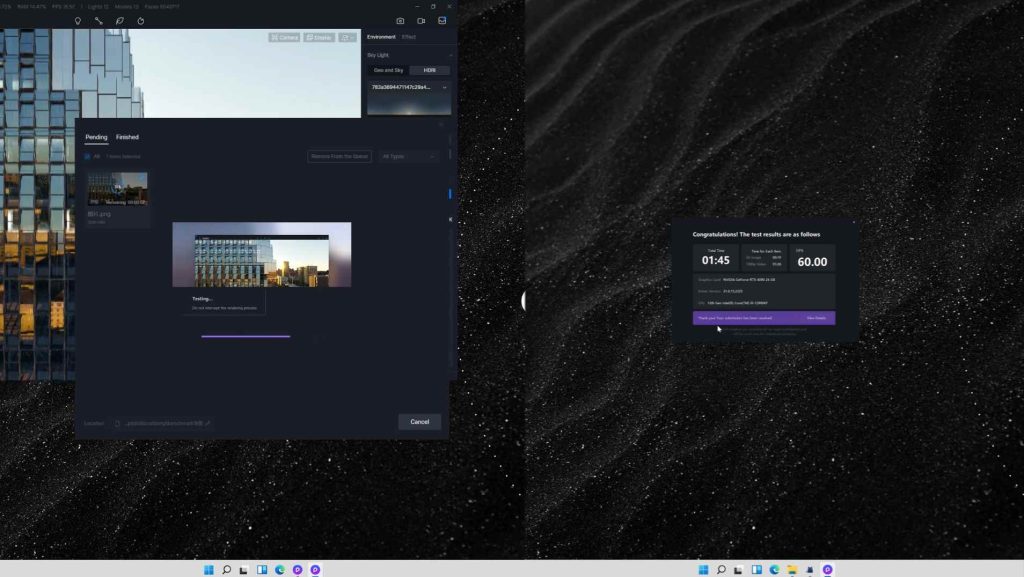
As a reference point, a D5 benchmark example using an RTX 4090 rendered a 5-second, 60 FPS, 1080p sequence in 1 minute 45 seconds. That gives you a useful baseline, although your own scene can produce very different results.
iRender
For D5, a SaaS render farm is not the natural setup because the software needs to run interactively on a Windows desktop. A remote workstation model fits much better, and iRender provides Windows machines with an RTX 4090 24GB configuration designed for D5 Render. You can connect to the machine, install D5, open your project, and work with the application much like you would on a local workstation.
For D5 Render cloud GPU use, the single RTX 4090 configuration is particularly relevant because D5 is built around a single-GPU workflow. Adding cards does not make one D5 session render faster, but if you add more single GPU machines and run separate D5 workloads simultaneously, your render will be much faster.
The main limitation is the 24GB VRAM ceiling of one RTX 4090. If your D5 scene requires more memory, you still need to optimize the project, while renting additional GPUs will not increase the usable VRAM for that single session.
Your renders, your rules. Take control of your VFX workflow with iRender’s dedicated GPU servers. Render with iRender →
FAQ
Can you run D5 Render in the cloud?
Yes. D5 Render can run on a cloud workstation when the environment provides Windows and a suitable ray-tracing GPU. Since D5 is an interactive application, you need a remote desktop where you can install the software, open projects, adjust scenes, and render animations directly. A cloud workstation with an RTX 4090 is therefore a practical setup for demanding D5 projects when your local PC cannot keep up.
Does D5 Render support multiple GPUs?
No. D5 Render uses dedicated GPU memory and does not support multi-GPU parallel or interconnected operation. A second graphics card therefore does not combine with the first one to accelerate a single D5 session. Multiple GPUs can still be useful when you run separate D5 sessions at the same time, such as several animation shots or projects, with each session assigned to each single GPU machine.
How much VRAM does D5 Render need?
The amount depends on the scene, because detailed vegetation, large textures, furniture, lighting, and other assets can increase memory use considerably. An RTX 4090 with 24GB VRAM is a strong choice for many demanding projects, but scenes that exceed that capacity need optimization, such as using instances and hiding unnecessary objects outside the camera view.
How long does a D5 4K animation take to render?
There is no fixed render time for a D5 4K animation. Duration, frame rate, scene complexity, lighting, materials, and quality settings all affect the result. A useful reference is a D5 benchmark where an RTX 4090 rendered a 5-second, 60 FPS, 1080p sequence in 1 minute 45 seconds, although a complex 4K project can take considerably longer.
See more: D5 Introduces an AI-Powered End-to-End Workflow for 3D Design



No comments