


Why Do My Texture Paths Break When I Render on Another Machine or Farm?
Texture paths often break when a scene moves to another machine because the scene stores where a texture is located, not the texture file itself. That location may only exist on your computer. An absolute path such as D:\Projects\… may not exist on the other machine, while a UNC network path may point to a drive the render node cannot access. File-name capitalization can also cause problems because Windows is usually case-insensitive, while Linux is case-sensitive. Different folder structures create another common mismatch. These are the main reasons for broken texture paths another machine. For a reliable setup, use relative paths based on the project folder, collect all required assets with the scene, and keep file names consistently lowercase.
Your scene does not actually contain the texture. Instead, it contains a reference telling the software where that texture is located. When you move the scene to another machine, that reference may still point to the old location, even though the file is no longer there.
Table of Contents
Absolute vs Relative, the Whole Story
When working with 3D scenes, you will commonly encounter two types of file paths: absolute paths and relative paths. They may look similar in your project, but they behave very differently when the scene moves to another computer. Understanding this difference can prevent many texture and asset errors during rendering.
An absolute path points to the exact location of a file on your machine. For example, D:\Projects\shot\tex\wood.png tells the software to look specifically on the D: drive, inside that exact folder structure. It works well locally because the software knows where everything is stored.
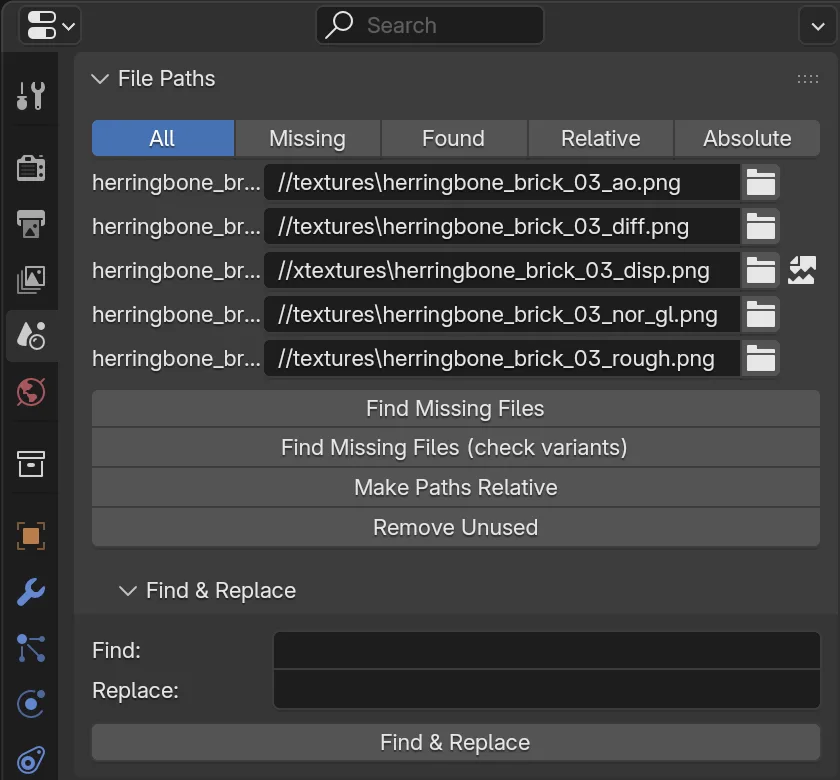
A relative path works from the location of the scene or project instead of pointing to a specific drive. For example, //textures/wood.png tells the software to find the texture relative to the scene file. This makes the project much easier to move, as long as the folder structure remains consistent.
The problem with absolute paths becomes clear when you send a project to a render farm. The render node is a different computer, so it may not have your D: drive or the same folder structure. When the software follows a path such as D:\Projects\shot\tex\wood.png, there may be nothing at that location on the node. The texture then cannot be loaded, which can lead to missing assets, pink textures, or a failed render. Relative paths are generally safer because the project can travel with its assets while keeping the same internal structure.
Four Ways a Path Breaks
This table tells you four ways your path could break on another machine and how you can fix it.
| Path Type / Problem | Why It Breaks on Another Machine | How to Fix It |
| Absolute drive path (D:\…) | The other machine does not have the same drive or folder structure | Switch to a relative path based on the project folder |
| Network UNC path (\\server\share) | The render node cannot access the network share | Copy the assets into the job instead of relying on the network share |
| Incorrect file-name capitalization | Windows usually ignores capitalization, while Linux treats uppercase and lowercase as different | Standardize file names using lowercase |
| Different folder structure | The relative path points to the wrong location | Keep the same folder structure when packaging the project |
How to Repath Without Redoing Everything
- Switch to relative paths. Use your DCC’s built-in tools, such as Blender’s Make All Paths Relative, Maya’s File Path Editor, or 3ds Max’s Asset Tracking, to update paths without manually relinking every texture.
- Organize your assets. Move textures, models, caches, and other required files into the project folder structure so relative paths can resolve correctly when the project moves to another machine.
- Standardize file names. Rename files using lowercase characters to reduce compatibility problems when your project is rendered on Linux-based systems, where uppercase and lowercase names are treated differently.
- Check for remaining broken paths. Use Report Missing Files, Asset Tracking, or similar tools to identify missing assets and locate any absolute paths that are still left in the scene.
- Test before rendering. Send a single frame to the target machine first. If the frame renders correctly with all textures and assets loaded, you can proceed with the full sequence more confidently.
iRender
Many SaaS render farms use a submitter that can collect assets and adjust file paths during upload, which helps prevent broken texture references. With an IaaS service such as iRender, you work inside a remote machine that can be configured to resemble your local workstation. If you use Windows, you can recreate the same drive letters and folder structure, allowing absolute paths to continue working in many cases. This can be useful when dealing with broken texture paths another machine, especially when your existing project relies on fixed locations.
The main limitation is that iRender does not provide the same automatic repathing layer found in some SaaS submitters. You need to upload the required assets and preserve the folder structure yourself. Once that setup is done, file paths behave much more like they do on your own workstation.
Your renders, your rules. Take control of your VFX workflow with iRender’s dedicated GPU servers. Render with iRender →
FAQ
Why do my texture paths break on another machine?
Texture paths can break because your scene usually stores where a texture is located rather than storing the texture itself. An absolute path such as D:\Projects\… may not exist on another machine, while a network path may be unreachable. Differences in folder structures and filename capitalization can also cause broken texture paths another machine, especially when moving between Windows and Linux. Using relative paths, packaging assets with the project, and standardizing filenames can prevent most of these problems.
What is the difference between absolute and relative paths in 3D?
An absolute path points to a specific location on a particular machine, such as D:\Projects\Shot\Textures\wood.png. It works well when the same drive and folder structure are available. A relative path points to the texture based on the scene or project location, so the project can be moved more easily while keeping its internal structure. For rendering on another machine, relative paths are generally more portable.
How do I fix broken texture paths for a render farm?
Start by checking the missing-file report or asset tracker to identify which paths are failing. Then convert absolute paths to relative paths and collect all textures inside the project folder. Keep the folder structure consistent when uploading the job, and use lowercase filenames to avoid case-sensitivity issues on Linux nodes. Finally, render a test frame on the target machine before sending the entire sequence, so any remaining path problems can be fixed early.
See more: How to Prepare and Package a VFX Scene for Any Render Farm





No comments