


Nanite and Lumen Are Maxing Out My GPU and VRAM. What Do I Do?
Nanite and Lumen consume VRAM in two different ways, and knowing which one is draining your card decides what you should change. Nanite streams high-detail geometry and caches it in VRAM, so a scene full of scanned or film-quality assets creates heavy pressure even when the object count is low. Lumen’s cost sits in the acceleration structures it traces against and in its lighting cache, and Epic states that those structures add overhead for every tile once you enable High Resolution Tiling.
The most common advice when UE5 reports that it is out of video memory is to turn Nanite off and turn Lumen off. The two systems fill memory through separate mechanisms. Once you know which mechanism your scene is hitting, there is almost always a reduction available that leaves the image intact.
Table of Contents
Two Different Appetites
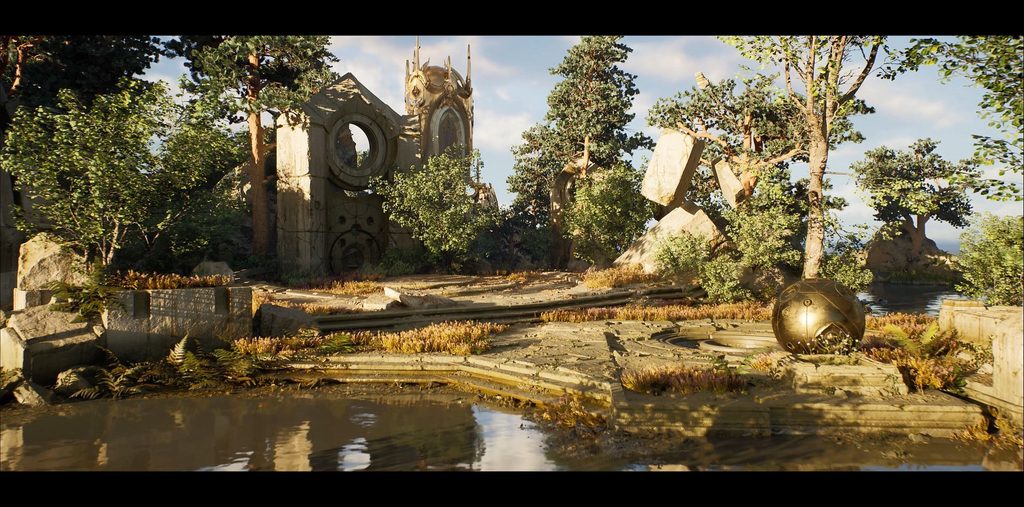
Image Source: Unreal Engine Forums
Nanite is virtualised geometry. Mesh data is streamed from disk as the camera needs it and held in a streaming pool in VRAM. A larger pool means a larger memory footprint, and that a pool too small for the view causes cache thrashing, where streaming never settles even on a static shot. The pressure follows detail density and the number of high-resolution assets on screen.
Lumen pays in a different place. It needs acceleration structures to trace rays against the scene, plus a cache of surface lighting it reuses between frames. That memory is committed before a single bounce is computed. Each tile under High Resolution Tiling carries its own overhead for raytracing and Lumen acceleration structures.
Two more consumers get left out of most VRAM budgets. Virtual shadow maps allocate their own page pool, and the texture streaming pool holds every mip the scene currently wants.
GBuffer is quite memory intensive and warns that a very large render, in the 8K to 16K range, may be impractical from a memory standpoint. This is why a scene that looks light can still run out.
It is also why two scenes that look alike on screen can have completely different memory profiles.
What Each Symptom Is Telling You
| Symptom | Most likely culprit | What to adjust first |
| Textures go soft, then the crash comes later | Texture streaming pool | Raise the pool or lower texture resolution |
| VRAM runs out when you raise the output resolution | GBuffer | Lower the resolution or enable tiling, see our 8K crash guide |
| Runs out with Lumen on, fine with it off | Lumen acceleration structures and lighting cache | Lower Lumen quality for draft passes |
| Runs out in scenes heavy with scanned assets | Nanite streaming | Reduce asset density, use proxies in the background |
| Usage climbs steadily across many frames | Memory accumulating over a long job | Split the sequence into shorter jobs |
Measure Before You Change Anything
You can follow 4 measures as below:
1. Read GPU memory at output resolution. Run the GPU memory statistics in the editor (stat RHI gives the overview) while the scene renders at the resolution you will deliver. The viewport figure is misleading, because the GBuffer and most screen-sized buffers scale with pixel count.
2. Record the peak on the heaviest frame. Scrub to the frame with the most geometry, lights and effects in view and note the highest VRAM figure there. The first frame of a sequence is rarely the worst one.
3. Switch Lumen off once, as a test, and measure again. The difference between the two readings is what Lumen costs on your scene. Turn it back on afterwards. This is a diagnostic step and you are not choosing a final setting here.
4. Check the texture streaming pool. stat streaming shows the pool budget against what the scene wants. An over-budget warning means the engine is already dropping mips to fit. For geometry, the Nanite streaming statistics show whether its pool is saturated.
Reductions That Keep the Look
• Lower Lumen quality for draft passes only. Keep a draft configuration with reduced Lumen settings for blocking and review, and a final configuration at full quality. Draft renders outnumber finals on most shots, so this is where the memory relief is felt.
• Use lighter assets in the background. Swap distant hero scans for proxies or lower-density versions and the streaming pool has room for the foreground.
• Reduce texture resolution by distance. Drop the maximum texture size on far assets and leave close-up materials untouched. A scene-wide reduction punishes the surfaces the audience actually reads.
• Raise the texture streaming pool if VRAM is spare. When step one showed headroom and step four showed an over-budget pool, increasing r.Streaming.PoolSize is the cheapest change available. Epic’s guidance is that the pool should be large enough to avoid starving the streamer and small enough to avoid wasting memory. If the card is already full, raising it only moves the shortage elsewhere.
• Split long sequences into shorter jobs. When usage creeps upward over hundreds of frames, restarting the process between ranges clears what has accumulated.
When the Scene Is Optimised and Still Hits the Ceiling
Once the reductions are done and the heaviest frame still does not fit, what remains is a card with more VRAM. Before buying one, it is worth knowing whether the extra memory solves your scene.
iRender rents RTX 4090 machines with 24GB and a single-card RTX 5090 package with 32GB, billed by the minute. That is enough to run the exact scene that fails at both ceilings and find out whether 8GB more gets it through.
Maximum Speed – Absolute Freedom. Take control of your VFX workflow with iRender’s dedicated GPU servers. Render with iRender →
FAQ
1. How much VRAM do Nanite and Lumen need?
No fixed figure exists, because both scale with the scene and the output resolution. Nanite’s use follows how much high-detail geometry is in view and how large its streaming pool is. Lumen’s use follows its acceleration structures and lighting cache, and grows again per tile under High Resolution Tiling. The GBuffer adds a cost that rises with pixel count, to the point where Epic warns that 8K to 16K renders may be impractical on memory. The reliable way to get your number is to measure peak GPU memory on your heaviest frame at delivery resolution.
2. Does Lumen or Nanite use more VRAM?
Either can be the larger consumer, and the mechanism tells you which. Nanite holds streamed geometry, so it dominates in scenes dense with scanned or film-quality meshes. Lumen holds acceleration structures and cached lighting, so it dominates in large lit environments and at high resolutions with tiling. To see which applies to your scene, measure GPU memory, disable Lumen once as a test, and measure again. The gap is Lumen’s share. What remains is split between Nanite, textures, shadows and the GBuffer.
3. Why do my textures go blurry before Unreal crashes?
Because the texture streaming pool is full. Unreal keeps streamed textures inside a fixed memory budget, and when the scene asks for more than the budget allows, the engine drops to lower-resolution mips to make everything fit. Surfaces turn soft as a result. If memory pressure keeps growing, a crash follows later. Many people start repairing the textures themselves, which are fine. Check the streaming statistics, then either raise the pool if the card has spare VRAM or reduce texture resolution on distant assets.







No comments