


Unreal Engine Cloud Rendering for Film and Virtual Production
Unreal Engine is a real-time tool, so cloud rendering can mean two very different setups. For finished shots, you can use Movie Render Queue (MRQ) or Movie Render Graph (MRG) to prepare jobs and send image-sequence rendering to a cloud service like SaaS render farm or remote machine. This works well when your settings are stable and the work can run without supervision. For film and cinematic production, however, you may need to keep the Unreal Editor open so you can iterate, test plugins, adjust lighting, and review shots interactively. In that case, a remote workstation like IaaS farm with a powerful GPU is more suitable. Unreal Engine cloud rendering therefore covers both automated batch rendering and interactive cloud workstations. Virtual production on a physical LED wall is different again, because live camera tracking and display response require very low latency.
The change from traditional offline rendering to real-time production has also changed how teams think about rendering. Since The Mandalorian helped popularize Unreal Engine for virtual production in 2019, real-time workflows have expanded from previs into advertising, broadcast, and cinematic work. Some shots still belong in a render queue, while others need to stay interactive throughout production.
Table of Contents
Two Ways to Render Unreal in the Cloud
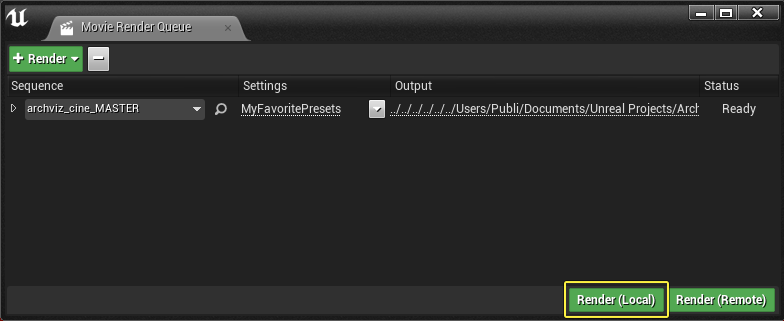
Unreal Engine gives you a batch-rendering path through Movie Render Queue, or MRQ. It is designed to render cinematics as image sequences or movies, and it can manage multiple jobs with saved settings. For Unreal Engine cloud rendering, this makes MRQ a good fit when your project is prepared for repeatable, unattended output.
MRQ also includes a Remote render option that launches the job in a separate process, and Epic documents its use for remote render-farm workflows. The command used to launch that process is written to the Output Log, which can help teams build their own automation.
For larger productions, Movie Render Graph, or MRG, adds a node-based way to organize rendering settings. You can build a graph for one shot or scale it across multi-shot workflows, then save it as a reusable asset. That makes MRG particularly useful when a production needs repeatable rendering logic across many sequences.
Batch (MRQ) vs Remote Workstation (IaaS)
| Criteria | Batch via MRQ (SaaS possible) | Remote Workstation (IaaS) |
| Workflow | Configure presets, submit the job, and receive the image sequence | Open the Editor and work interactively, just like on your own machine |
| Plugins / unusual versions | Limited to the versions and plugins supported by the farm | Install any compatible plugin or software version yourself |
| Cinematic iteration | Slower because changes require another submission | Faster because you can adjust settings and review results immediately |
| Virtual production | Not suitable | Suitable for scene setup, but not for live LED operation |
| Operational workload | The farm handles the infrastructure | You manage the setup, and billing continues while the machine is running |
Nanite, Lumen and the GPU Question
Nanite and Lumen make Unreal Engine 5 capable of handling highly detailed environments with convincing real-time lighting, but both can place substantial demands on the GPU and VRAM. Nanite’s virtualized geometry allows scenes to contain extremely detailed assets, while Lumen handles dynamic global illumination and reflections. When you move toward 4K or 8K cinematic output, large environments, high-resolution textures, detailed lighting, and complex materials can push VRAM usage much higher.
For Unreal Engine cloud rendering, a cloud workstation with an RTX 4090 and 24GB of VRAM is suitable for many projects, including demanding cinematic scenes. Extremely heavy environments can still exceed that capacity, so optimizing geometry, textures, lighting, and unnecessary assets remains important before sending a project to the cloud.
Virtual Production Without an LED Stage in the Cloud
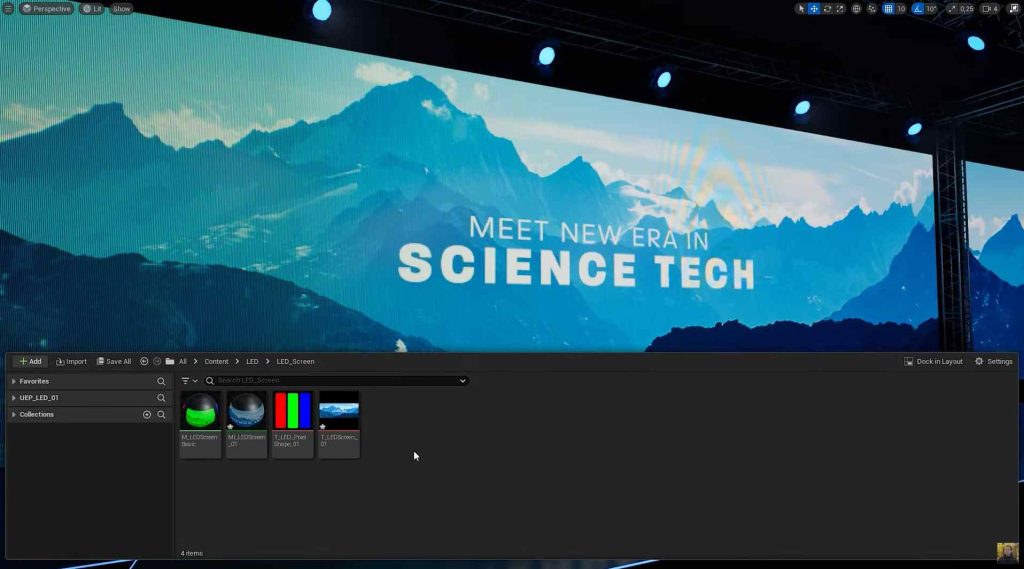
A cloud workstation can be useful when you need to build UE5 environments, prepare previs, test heavy render passes, or generate several scene variations without tying up your local machine. You can keep the Unreal Editor running remotely and work through demanding parts of the project from your desktop.
It cannot replace a live in-camera VFX setup connected to a physical LED wall. That workflow depends on extremely low-latency communication between the camera, tracking system, Unreal Engine, and display. When the Unreal session runs on a remote server, network latency can interfere with real-time camera tracking and background updates. Cloud rendering is therefore useful around the virtual production workflow, but it is not a substitute for the local hardware required on an LED stage. This limitation is also consistent with current industry discussions about Unreal Engine’s role in final-pixel production and virtual production.
iRender
For Unreal projects, a SaaS render farm can handle Movie Render Queue jobs in batches, which works well when you have stable presets and mainly need finished frames or image sequences. A remote workstation takes a different approach. iRender provides an RTX 4090 workstation that you can control directly, allowing you to open Unreal Editor, install specialized plugins, adjust a cinematic interactively, or prepare a virtual production environment.
The main limitation is operational responsibility. You set up Unreal and your plugins yourself, while the machine is billed while it remains powered on, rather than only while a render is running.
Your renders, your rules. Take control of your VFX workflow with iRender’s dedicated GPU servers. Render with iRender →
FAQ
Can you render Unreal Engine in the cloud?
Yes. Unreal Engine can run on a cloud workstation with a suitable Windows and GPU environment, allowing you to use the Editor much like a local machine. For automated output, Movie Render Queue can also submit rendering jobs that a compatible render service processes remotely. The right setup depends on whether you need interactive work or unattended batch rendering.
Do render farms support Unreal Engine Movie Render Queue?
Many render farms can support Unreal Engine projects through Movie Render Queue, particularly when the project uses established engine versions, plugins, and rendering settings. MRQ is well suited to repeatable batch jobs because you can prepare the scene, configure the render settings, and submit the output. However, plugin compatibility and supported Unreal versions vary between services.
Can I do virtual production on a cloud machine?
You can use a cloud machine for parts of a virtual production workflow, such as environment creation, previs, scene preparation, and testing. A remote workstation cannot replace a local system for live in-camera VFX on a physical LED wall, because camera tracking and display updates require extremely low latency.
How much VRAM do I need to render UE5 cinematics?
There is no single VRAM requirement for every UE5 cinematic. Nanite, Lumen, high-resolution textures, detailed environments, and 4K or 8K output can all increase memory use. An RTX 4090 with 24GB is a strong starting point for many projects, although exceptionally heavy scenes may still require optimization to stay within available VRAM.
See more: Best Unreal Engine render farm in 2025






No comments