


Octane vs Redshift for Houdini Look Development
For Houdini look development, the biggest difference in Octane vs Redshift is how you reach a convincing image, rather than how fast the final render finishes. Octane is an unbiased, GPU-only renderer that gradually converges toward a physically based result, making materials and lighting easier to judge with fewer sampling controls. Redshift offers more detailed sampling options, fast OptiX denoising for interactive previews, and CPU or hybrid rendering support. Both renderers support Solaris workflows and out-of-core rendering, and both require separate licenses beyond Houdini. Octane suits artists who prefer to judge materials and lighting by eye with a straightforward workflow. Redshift is often more predictable when you need to control specific ray types and match the final render settings used on a render farm. Your choice depends on how you prefer to work during look development.
Look development is all about iteration. Final renders may run overnight, but look dev involves adjusting roughness, checking reflections, and tweaking lighting hundreds of times a day. In the Octane vs Redshift comparison, the important question is which renderer makes that loop faster and more reliable.
Table of Contents
Two Philosophies, One Viewport
Octane is an unbiased, physically based renderer that runs on GPUs. During look development, its image gradually becomes cleaner as samples accumulate, so you can evaluate materials and lighting without managing as many sampling controls.
Redshift offers more detailed control over sampling for different effects. It supports GPU rendering, as well as CPU and hybrid rendering workflows, giving you more options when managing demanding scenes.
Both Octane and Redshift are third-party renderers rather than native Houdini renderers, so each requires a separate license. In unbiased vs biased renderer look dev, unbiased does not automatically mean better, and biased does not mean inaccurate. The main difference is how each renderer balances physical simulation, sampling control, and workflow flexibility.
The Look-Dev Loop: Octane vs Redshift at Every Step
This table summarizes the core differences between Octane and Redshift during Houdini look development, from interactive previews to memory management and final render consistency.
The Look-Dev Loop: Octane vs Redshift at Every Step
| Look-Dev Stage | Octane | Redshift | Notes |
| Previewing changes | Live Viewer with progressive convergence | IPR with fast OptiX denoising | Responsiveness depends heavily on scene complexity, GPU, IPR resolution, and denoising settings, but Octane generally feels smoother and more responsive, while Redshift is fast but may introduce slight interaction delays. |
| Controlling noise | Fewer controls, with image quality improving as samples accumulate | More sampling controls for different ray types and effects | Redshift makes it easier to target demanding areas. |
| Working without a powerful GPU | Does not support CPU rendering | Supports CPU and hybrid rendering | Based on information from OTOY and Maxon. |
| Solaris / USD integration | Solaris plugin support through Hydra from version 2026.3.0.0 | Solaris/USD/Hydra integration documented by Maxon | Check which Houdini builds are supported by your renderer version. |
| Scenes exceeding VRAM | Supports out-of-core rendering; but no confirmation whether VDB/volume data is eligible for out-of-core storage; test volume-heavy scenes directly | Supports out-of-core rendering, except for volume grids such as VDB files and sprite node textures | See the articles on Octane out-of-core in Houdini and Redshift out-of-core and VDB limitations. |
| Matching IPR with final farm renders | Same render engine and version | Same render engine and version; verify consistency if you use CPU rendering locally | Keep the renderer version consistent between your workstation and the render farm. |
Quick decision
- Choose Octane if: You prioritize a smooth, responsive viewport, straightforward settings, and less time spent adjusting sampling parameters. It is a good fit when your workstation has a sufficiently powerful GPU.
- Choose Redshift if: You work on complex scenes or large animation projects and need precise control over noise from different ray types. Its CPU and hybrid rendering options also provide alternatives when GPU resources are limited.
For this stage of the Octane vs Redshift comparison, focus on your daily workflow. Octane favors a straightforward, progressive preview experience, while Redshift offers more detailed control over rendering behavior.
Materials and Lighting Iteration
For material development, Octane uses a physically based approach that works well when matching photographic references. You can often judge materials and lighting with fewer adjustments. Redshift offers more sampling and optimization controls, which can help keep IPR responsive in demanding Houdini scenes with heavy instancing or volumes.
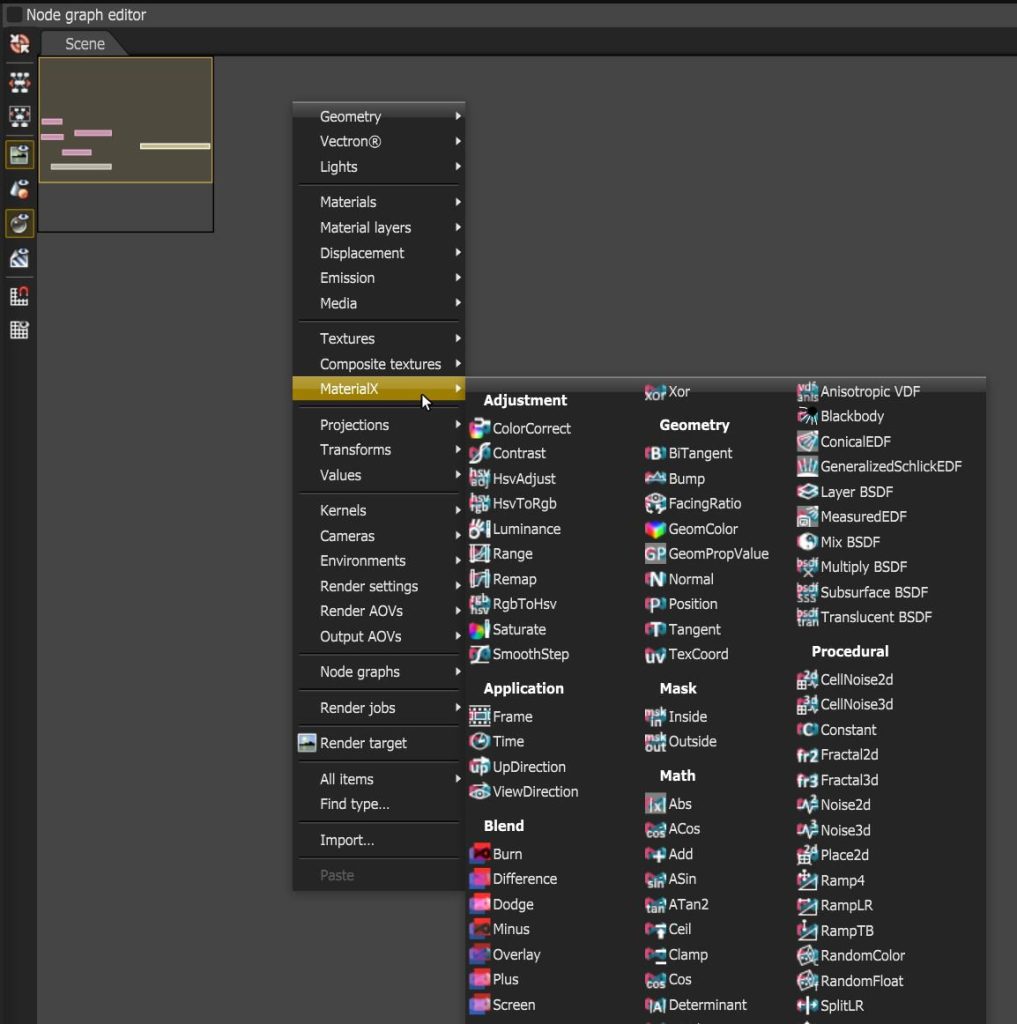
As of October 27, 2026, Redshift does not offer fully native MaterialX support across all Houdini workflows, relying instead on its Solaris integration. Octane provides native MaterialX support from Octane 2026.1, including MaterialX/OpenPBR workflows, MaterialX imports, and USD-based MaterialX content, as described in the official OTOY documentation. This distinction matters if MaterialX is central to your material pipeline.
Both renderers provide tools for lighting control and compositing, but their workflows differ. OctaneRender for Houdini includes light pass IDs, object-based light inclusion and exclusion, local and global light controls, Light Mixer, Octane Daylight, HDRI and environment lighting, plus lighting, beauty, and material AOVs. Redshift supports Light-to-Object Association, mesh light associations, shadow linking, light group assignment, and light group AOVs. It also provides integrated, utility, and custom AOVs, with DeepEXR output for compositing workflows.
Getting From Look Dev to Final Without Surprises
A reliable look-dev workflow should produce consistent results when you move from interactive previews to final rendering. Both Octane and Redshift need a few checks before you send a sequence to production.
- Match renderer versions. Use the same engine version on your look-dev workstation and final render machines to reduce unexpected differences.
- Verify Redshift rendering modes. If you develop materials using CPU or hybrid rendering but render the final sequence on GPUs, test a frame first. Maxon does not guarantee identical results across these rendering paths.
- Check denoising consistency. IPR denoising may behave differently from final-frame denoising. For animation flicker and temporal consistency, see our article, Redshift Denoiser Consistency Across a Houdini Sequence.
- Test the heaviest frame. Check VRAM usage on the most demanding shot, especially when it contains dense geometry, instancing, or volumes. A simple look-dev frame may not reveal memory problems.
- Check Octane’s multi-GPU memory limit. When using multiple GPUs, the card with the least VRAM can determine the available memory ceiling. Confirm that your heaviest scene fits within that limit before starting the final render.
Which One for Which Kind of Look Dev
The following comparison highlights which Houdini look development renderer best suits different workflows, based on scene complexity, hardware, and production requirements.
Which One for Which Kind of Look Dev
| Type of Work | Recommended Renderer | Why |
| Product materials, hero assets, and matching photographic references | Octane | Physically based rendering, fewer controls to manage, and progressive convergence toward a realistic image. |
| Heavy Houdini scenes with instancing or Pyro that need responsive IPR | Redshift | Detailed sampling controls for different ray types and out-of-core rendering support. |
| Look development on a laptop or workstation with a weaker GPU | Redshift | Supports CPU and hybrid rendering workflows. |
| Teams already using Karma that want to add another GPU renderer | Depends on the workflow | Compare pipeline requirements, licensing, and compatibility. See our article on Redshift vs Karma XPU for Houdini Production. |
Key Takeaways for Choosing a Renderer
- Octane: A strong choice for product materials and hero assets. Its physically based approach and relatively simple controls make it easier to evaluate materials and lighting through responsive previews.
- Redshift: Well suited to demanding Houdini scenes involving Pyro, instancing, or complex geometry. Detailed ray sampling controls, out-of-core support, and CPU or hybrid rendering provide additional flexibility when GPU resources are limited.
- Karma XPU: May fit teams already standardized on Solaris/USD; evaluate MaterialX, USD, licensing, and render-farm compatibility before adopting it.
Test Both Renderers Without Buying New Hardware
If you want to compare both engines on the same Houdini scene without buying another GPU, an iRender cloud workstation offers configurations with RTX 4090 24GB or RTX 5090 32GB GPUs, up to eight cards, and 256GB RAM. Testing the same scene in both renderers over an afternoon can reveal more about your workflow than a feature comparison alone. For more context, see this Houdini production comparison of Karma XPU, Octane, and Redshift.
iRender provides hardware rather than bundled rendering software, so you need valid licenses for Houdini and your chosen renderer. Before connecting to the remote workstation, release your licenses from your local machine if required. Remember to release them from the remote machine before shutting it down.
FAQ
Is Octane or Redshift better for look development in Houdini?
Octane is a strong choice for artists who prefer a straightforward, physically based workflow and responsive progressive previews. Redshift suits complex scenes that need detailed sampling control and optimization. Test both with your typical materials, lighting, and scene complexity to see which workflow feels more efficient.
Can Octane render on CPU? Can Redshift?
Octane is a GPU-only renderer and does not support CPU rendering. Redshift supports GPU rendering, CPU rendering, and hybrid workflows, depending on the version and configuration. If your workstation lacks a powerful GPU, Redshift offers more flexibility, although performance will vary with scene complexity and available hardware.
Do Octane and Redshift work in Solaris?
Yes. Redshift supports Solaris through USD/Hydra and can render USD scenes with Redshift-specific settings alongside generic Solaris nodes. Octane supports Solaris through OTOY’s Houdini Solaris/Hydra plugin, but the supported Houdini builds and plugin status change between releases, so verify the exact release before production.
Do I need a separate license for Octane or Redshift in Houdini?
Yes. Houdini, Octane, and Redshift have separate licensing requirements, so having a Houdini license does not automatically grant access to either renderer. Before using a remote workstation, confirm that your licenses cover the intended setup and release them correctly when switching between local and remote machines.
See more: Redshift vs Octane render for Cinema 4D: which is better?

No comments