


Rendering Houdini Sim Caches with Redshift on a Farm
Redshift Houdini cache render jobs often fail for three reasons: incorrect file paths, motion blur issues, and insufficient VRAM. If it’s path-related issues, use relative paths in your .rs proxies, check dependencies with redshiftCmdLine -printdependencies, and apply path overrides when farm storage differs from your local setup. Motion blur requires a valid v attribute for frame-based caches, while changing topology generally calls for velocity blur. Redshift cannot render volumes beyond available GPU memory through out-of-core processing, so VDB caches must fit within the farm GPU’s VRAM. Test these three areas on a few frames before submitting the full sequence. This simple check helps you catch missing assets, broken blur, and memory errors before they delay production.
Your simulation may run overnight and cache without errors. Local renders look perfect, but the farm produces missing volumes, blurred fragments disappear, or jobs stop because of VRAM limits. These problems have different causes, and Redshift provides specific tools to help you diagnose each one.
Table of Contents
Before Anything: The Cache Must Exist on the Farm
Simulation caches usually live outside the Houdini .hip file, so absolute paths can point to drives that the farm cannot access. Use $HIP for paths relative to the current scene file or $JOB for project-level paths. These variables make the Redshift Houdini cache render workflow more portable, especially when your local directory structure differs from the farm environment. For more details, see this guide to Houdini file paths.
Uploading the cache is another essential step. Simulation data can be much larger than the scene file itself, particularly when working with dense volumes or complex particle systems. Include every required cache file in your submission, and check that the farm can access the complete sequence. If uploads take too long, this guide to speeding up large file transfers can help you reduce submission time.
Redshift Proxies: Why They Help on a Farm
When rendering Houdini projects with Redshift on a farm, Redshift proxies can reduce repeated geometry processing and simplify asset management, especially in scenes with many instances.
- Load efficiently: Proxies allow geometry to load as needed, reducing repeated extraction work.
- Instance carefully: Reuse one proxy for multiple copies, but avoid adaptive tessellation when instancing.
- Preserve attributes: Proxy export may discard attributes not used by the shader assigned at export time. If you plan to override materials later, ensure the required UVs or vertex attributes are used during export, or disable attribute discarding as appropriate.
- Check materials: Use the From Scene material mode when sharing proxies between applications.
Paths Inside Proxies
Redshift proxies can reference external files, such as textures and volumes, through absolute or relative paths. Relative paths make it easier to move a project between machines, but they can break when dependent files sit outside the proxy’s shared directory structure. For a reliable Redshift Houdini cache render workflow, check every external dependency before submitting your scene.
- Organize assets: Keep textures and volume files under the same directory root as the proxy whenever possible, so relative paths remain valid when the project moves.
- Check dependencies: Run redshiftCmdLine -printdependencies to list the external files required by the proxy.
- Override paths: If the farm uses different drive letters or mount points, use REDSHIFT_PATHOVERRIDE_FILE or REDSHIFT_PATHOVERRIDE_STRING to remap paths.
- Test a frame: Render one frame on the farm before submitting the full sequence to catch missing textures and volumes early.


Motion Blur from Caches: Which Method Should You Choose?
Frame-based caches, including .bgeo.sc, per-frame Alembic, and VDB files, store individual snapshots rather than continuous motion. Redshift needs either velocity data or properly interpolated sub-frame geometry to calculate blur correctly. When topology changes, you can use Redshift velocity blur Houdini with a valid v attribute to avoid missing or incorrect motion blur.
| Cache Type | Changing Topology? | Blur Method | Required Cache Data |
| Particles (birth and death) | Yes | Velocity blur | v attribute |
| Fracture and RBD breaking into new pieces | Yes | Velocity blur | v attribute |
| Fluid mesh | Yes | Velocity blur | v attribute |
| Cloth or deforming mesh with a constant point count | No | Deformation blur | Neighboring frames; requires more memory |
| VDB volume | Depends | Velocity field | Velocity field vel |
Motion Blur Settings That Bite on a Farm
Motion blur settings can produce unexpected results when your local setup differs from the farm’s render template. Check these parameters before launching a full sequence.
- Deformation blur: Redshift disables deformation blur by default. Enabling it for heavy geometry can increase memory usage and push a scene beyond available VRAM.
- Frame duration and position: These settings control the time interval sampled for motion blur. Depending on whether you select Start, Center, or End, samples may extend beyond the current frame.
- Motion Vector AOV: Enabling the Motion Vector AOV disables motion blur in the beauty render. Check the farm template if your final images unexpectedly lose blur.
For Redshift motion blur cache workflows, keep the original simulation cache unchanged. If collisions produce unusually long streaks, clamp velocity in the render branch to control the blur without altering the source cache.
Volumes: Budget VRAM on the Farm GPU
Redshift does not support out-of-core rendering for VDB volumes, so the volume grids and the rest of the scene must fit within the VRAM Redshift can actually allocate on the render GPU. A cache that renders successfully on one workstation may fail on another with less VRAM. Check your farm GPU’s memory capacity before submitting heavy volume scenes.
To estimate memory usage, inspect the Redshift log. At the top of the log, look under “Initializing GPUComputing Module (CUDA)” for the GPU’s hardware memory capacity and the amount available after system reservations. These figures help you understand how much VRAM Redshift can use for rendering. Check the heaviest frame in your sequence, since volume density and scene complexity can vary between frames. For more details, read Maxon’s guide to managing VRAM issues with Redshift.
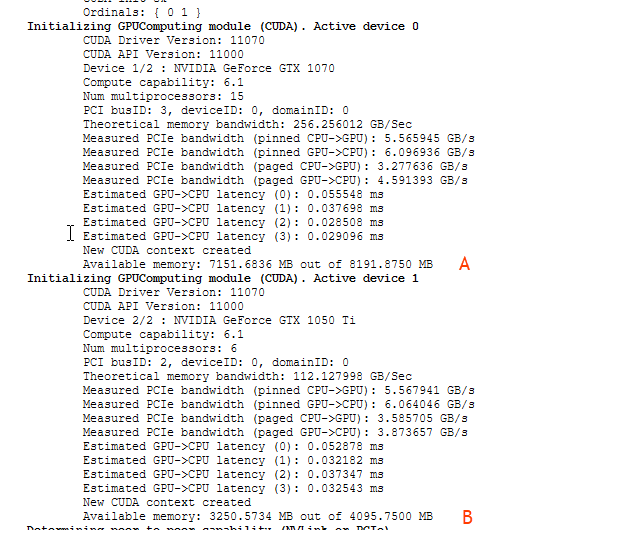
A render that fails on your home GPU may succeed on a farm machine with more VRAM. However, check the specifications of the available GPUs before choosing a machine for Redshift VDB render farm. Your scene needs enough memory to handle its heaviest frame without running out of resources.
Before upgrading your GPU, optimize the scene first. Reduce voxel resolution in areas far from the camera, remove unnecessary volume detail, and test the heaviest frame again. These adjustments can lower memory usage while preserving the quality that matters in the final image.
Remote Workstations for Houdini and Redshift
Remote workstation services such as iRender – with RTX 4090 GPU 24 GB VRAM, and RTX 5090 GPU 32 GB – let you work in Houdini in a desktop environment similar to your local machine. You can check proxy paths, motion blur settings, and VRAM logs directly on the machine that will render your scene. This makes it easier to identify problems before committing to a full sequence.
Remember this is not fully automated render farms. You must install and configure your own Houdini and Redshift environment. If you split frames across multiple machines, each workstation needs access to the required caches. Cache files are not automatically synchronized between machines, so plan ahead when working with hundreds of gigabytes of simulation data.
Maximum Speed – Absolute Freedom. Take control of your VFX workflow with iRender’s dedicated GPU servers. Render with iRender →
FAQ
Why is motion blur missing on my Houdini cache in Redshift?
Your cache may not contain the velocity attribute v that Redshift needs to calculate velocity blur. Check the cached geometry before changing render settings. If the topology changes between frames, such as when particles spawn or fracture pieces break apart, use velocity blur with valid velocity data. For deforming meshes with consistent topology, deformation blur may be more suitable.
Should I use Redshift proxies for sim caches on a farm?
Yes, Redshift proxies can help manage heavy simulation geometry and repeated objects across farm renders. They allow geometry to load on demand and support instancing, which can reduce repeated processing. However, check that the proxy includes every attribute required by its materials. Missing UVs or other attributes can cause incorrect results if you change materials after export.
How do I fix broken texture paths in Redshift proxies?
Use relative paths when possible, and keep textures under a shared directory root with the proxy. Run redshiftCmdLine -printdependencies to identify missing or inaccessible files. If the farm uses different drive letters or mount points, configure REDSHIFT_PATHOVERRIDE_FILE or REDSHIFT_PATHOVERRIDE_STRING to map paths to the correct locations. Render a test frame to confirm the fix.
Why does my VDB render out of memory on the farm but not locally?
The farm GPU may have less available VRAM than your local card, or the scene may use more memory than expected on its heaviest frame. Redshift cannot render VDB volumes using out-of-core processing. Check the GPU memory figures in the Redshift log, then reduce voxel resolution or unnecessary volume detail. Confirm that the farm GPU has enough VRAM before submitting the full sequence.
See more: Redshift Out-of-Core in Houdini and Why VDB Ignores It






Pingback:Redshift Denoiser Flicker: How to Fix Houdini Animation | 29 October, 2026
|
Pingback:Best Render Farm for Houdini in 2026: Engines and Farms | 9 November, 2026
|