


Why Karma XPU Can Render Slower Than CPU Only
Karma XPU divides rendering between the GPU and CPU, while the GPU needs to load geometry, textures, and acceleration structures into VRAM. When the scene fits, you get the full benefit of this hybrid design. When it does not, XPU can move data between VRAM and system RAM, adding significant overhead. At the VRAM limit, the OptiX component may be disabled for the scene. The GPU then stops providing useful rendering power while still adding memory management overhead. This is why Karma XPU slow problems can sometimes make a render take longer than CPU-only rendering. Users have reported cases where a scene exceeding 24GB on an RTX 4090 rendered about 66% slower than the same scene on CPU alone. If you see Karma XPU slower than CPU, reduce the scene below the VRAM limit, use a GPU with more VRAM, or switch heavy shots to Karma CPU.
Adding a powerful GPU should make rendering faster, but Karma XPU can sometimes do the opposite. That can make Karma XPU slow feel like a software problem. The renderer is not necessarily broken. When the scene exceeds available VRAM, Karma XPU slower than CPU can become a very real result because the GPU workload starts creating extra overhead.
Table of Contents
What XPU Does When the Scene Fits
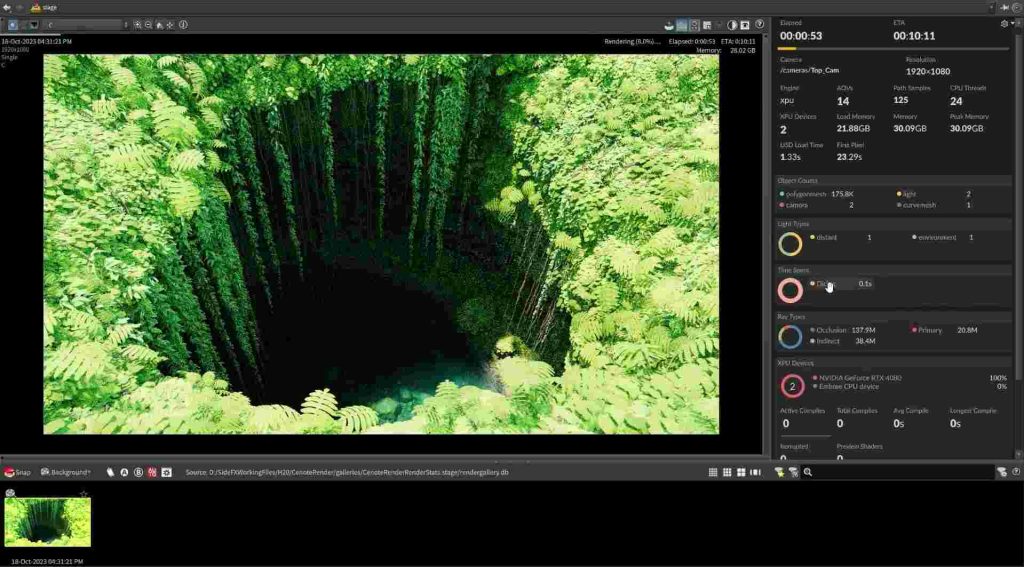
When your scene fits comfortably within the available VRAM, Karma XPU can divide the workload efficiently. The GPU loads geometry, textures, and acceleration structures into VRAM through OptiX, while the CPU works through Embree at the same time. Both processors contribute to the render.
In this situation, XPU can be noticeably faster than Karma CPU on the same machine. Karma CPU relies entirely on the CPU, so it cannot use the GPU’s parallel processing power. XPU combines both resources, which is where much of its speed advantage comes from.
What Happens When It Does Not Fit
When the scene exceeds available VRAM, XPU can move data between VRAM and system RAM instead of keeping the workload entirely on the GPU. Each transfer adds overhead. Once the VRAM ceiling is reached, the OptiX component may be disabled for the scene, leaving CPU rendering to handle the workload while GPU memory management costs remain. This is where Karma XPU slow behavior can become severe.
A user-reported case involved a scene that exceeded 24GB of VRAM on an RTX 4090. The render was reported to be about 66% slower than the same scene rendered on a CPU-only machine. Results will vary with the scene and hardware, but the example shows why VRAM capacity matters when evaluating XPU performance.
The important point is that this problem does not necessarily change the final image quality. SideFX states that XPU is designed to produce the same result across supported hardware configurations. The issue here is performance. If you encounter Karma XPU slower than CPU, the first thing to investigate is whether the scene has exceeded the available VRAM.
Three XPU States
| State | What Happens | Speed Compared with Karma CPU |
| Scene comfortably fits within VRAM | GPU + CPU share the workload | Significantly faster |
| Scene approaches the VRAM limit | Data transfers between VRAM and system RAM begin | Starts to slow down |
| Scene exceeds the VRAM limit | OptiX may be disabled for the entire scene | Can be slower than CPU-only rendering |
How to Tell Which State You Are In
You can check your scene before committing the full sequence by watching VRAM usage, comparing render times, and checking the render log.
- Monitor VRAM during a heavy frame. If usage gets close to the GPU’s limit, that is an early warning sign.
- Compare a heavy frame with a light frame from the same sequence. A large difference in render time, especially several times longer rather than just a few dozen percent, can indicate a CPU fallback.
- Render the same frame with Karma CPU. If CPU rendering finishes faster, your scene may be in the third state from the table above.
- Check the render log. Look for messages showing whether the OptiX component has been disabled.
What Actually Fixes It
If your scene is showing Karma XPU slow performance or Karma XPU slower than CPU, try these fixes:
- Bring the scene below the VRAM limit. Reduce texture resolution, use instances instead of duplicated geometry, crop volumes to the camera frame, and split the scene into render layers.
- Use a GPU with more VRAM. Moving from 24GB to 32GB can make a meaningful difference for demanding Houdini scenes because it pushes the VRAM limit further away.
- Switch the heaviest shots to Karma CPU. A machine with plenty of system RAM can be a better choice when the scene is simply too large for available GPU memory.
Adding more GPUs does not solve a VRAM limit. XPU does not pool VRAM across cards or support NVLink for this purpose. Multiple GPUs can help render more frames in parallel, but they do not make a single frame fit into a larger shared memory pool.
iRender: More VRAM Instead of More GPUs
If the VRAM ceiling is causing your sequence to slow down, a GPU with more VRAM is more useful than simply adding more cards. iRender offers RTX 4090 systems with 24GB VRAM and RTX 5090 systems with 32GB VRAM, paired with AMD Threadripper Pro CPUs. That combination provides the GPU memory and CPU power that Karma XPU needs for hybrid rendering.
More VRAM only moves the limit further away. It does not remove it. A heavy volume scene can still exceed 32GB on an RTX 5090, in which case Karma CPU on a machine with plenty of system RAM may be the better option than adding more GPUs. At iRender, you have access to 256GB RAM, making it a life saver if your local machine cannot handle the project.
Maximum Speed – Absolute Freedom. Take control of your VFX workflow with iRender’s dedicated GPU servers. Render with iRender →
FAQ
Why is Karma XPU slower than Karma CPU on my scene?
The most common reason is that the scene has reached the GPU’s VRAM ceiling. When the scene no longer fits, XPU may transfer data between VRAM and system RAM, adding significant overhead. If the VRAM limit is reached, the OptiX component may be disabled for the scene. The GPU then stops providing useful acceleration while memory management still adds cost. This can make Karma XPU slower than CPU on the same scene.
Does Karma XPU look different when it falls back to CPU?
Not necessarily. A CPU fallback is primarily a performance issue rather than a change in image quality. SideFX states that XPU is designed to produce consistent results across supported hardware configurations. If the OptiX component is disabled because the scene exceeds available VRAM, the render can take much longer, but the resulting image should not change simply because the workload is being processed on the CPU.
Will adding a second GPU fix Karma XPU performance?
Not when the problem is a single scene exceeding the VRAM limit. GPU memory is not pooled across cards, and XPU does not use NVLink to combine VRAM. A second GPU can improve throughput by rendering more frames simultaneously, but it will not make one oversized frame fit. For Karma XPU slow performance, use a GPU with more VRAM or reduce the scene’s memory footprint.







Pingback:Rendering Pyro and Volumes with Karma XPU - VFXRendering | 8 October, 2026
|