


How Long Does a 4K D5 Animation Take to Render?
There is no fixed answer for D5 Render animation time because scene complexity, output quality, and GPU performance all affect rendering speed. However, you can estimate the total time with a simple formula: video duration × FPS × average render time per frame. For example, a 60-second walkthrough at 30 FPS contains 1,800 frames. At 30 seconds per frame, rendering takes 15 hours, while 10 seconds per frame reduces it to 5 hours. These are calculation examples, not measured benchmarks. A 4K video contains four times as many pixels as a 1080p video, and rendering can become even slower when VRAM is limited. For a reliable estimate, render a three-to-five-second sample using your final settings, measure the average frame time, and calculate the full sequence.
The D5 Render video export time estimate on your progress bar can be misleading. Early walkthrough frames may show simple building exteriors, while later sections contain dense gardens and detailed landscaping. Since the initial estimate may reflect lighter frames, it can underestimate the total time. Test the heaviest section to get a more realistic prediction.
Table of Contents
The Formula That Actually Predicts It
The formula for estimating total render time is straightforward: multiply the video duration in seconds by the frame rate and the average render time per frame. This gives you the total rendering time in seconds.
The table below shows estimated render times for videos of different lengths at 30 FPS. We use three example render speeds: 10, 30, and 60 seconds per frame. These figures illustrate the calculation rather than represent measured D5 Render animation time.
At 30 FPS:
- 30-second video: 30 × 30 = 900 frames
- 60-second video: 60 × 30 = 1,800 frames
- 120-second video: 120 × 30 = 3,600 frames
Total Render Time by Video Length and Render Speed
| Video Duration | Frame Rate | Total Frames | Render Time per Frame | Total Render Time |
| 30 seconds | 30 FPS | 900 | 10 sec/frame | 2 hours 30 minutes |
| 900 | 30 sec/frame | 7 hours 30 minutes | ||
| 900 | 60 sec/frame | 15 hours | ||
| 60 seconds | 1,800 | 10 sec/frame | 5 hours | |
| 1,800 | 30 sec/frame | 15 hours | ||
| 1,800 | 60 sec/frame | 30 hours | ||
| 120 seconds | 3,600 | 10 sec/frame | 10 hours | |
| 3,600 | 30 sec/frame | 30 hours | ||
| 3,600 | 60 sec/frame | 60 hours (2 days 12 hours) |
Note: These estimates assume that every frame takes the same amount of time to render on a single machine. Actual render times may vary depending on scene complexity, frame-to-frame differences, and rendering overhead.
The biggest variable is the time required to render each frame. That figure changes as the camera moves through the scene. Open areas with fewer assets may render quickly, while dense vegetation, complex materials, reflections, and detailed lighting can increase processing time significantly. For a more accurate estimate, test several sections of your animation, including the most demanding shots.
Why 4K Costs More Than 4x
A 4K image contains four times as many pixels as a 1080p image, so you might expect rendering to take roughly four times longer. However, a community report from 2021 by Gravis3D showed a much larger gap. On an RTX 2070 8GB, a 15-second video at 30 FPS took 90 minutes to render at 1080p and 14 hours 40 minutes at 4K. That works out to around 12 seconds and 117 seconds per frame, respectively. This older D5 version and GPU illustrate how D5 4K video render time may increase far beyond pixel count alone.
One common cause is VRAM pressure at higher resolutions, which can slow rendering significantly. For more detail on this issue, see this article.
How to Measure Your Own Scene in 10 Minutes
D5 Render’s estimated time remaining may not accurately reflect the full workload, especially when scene complexity changes throughout a walkthrough. To estimate your D5 Render animation time more reliably, run a short test using your final export settings.
- Find the heaviest section. Choose a few seconds with dense vegetation, glass, or complex lighting.
- Render a 3 to 5-second sample. Use the same resolution and quality settings planned for the final video.
- Calculate the frame time. Divide the sample’s total render time in seconds by its number of frames.
- Estimate the full video. Multiply the average time per frame by the total frame count, then add a safety margin.
- Monitor VRAM usage. Use GPU-Z during the test to check memory consumption, following D5’s recommendation.
Cutting the Number Down
If rendering takes too long, you do not need to upgrade your GPU immediately. A few targeted optimizations can reduce D5 Render animation time while preserving the visual quality your project needs.
- Remove off-camera assets. Delete trees and grass that never appear in the final shot.
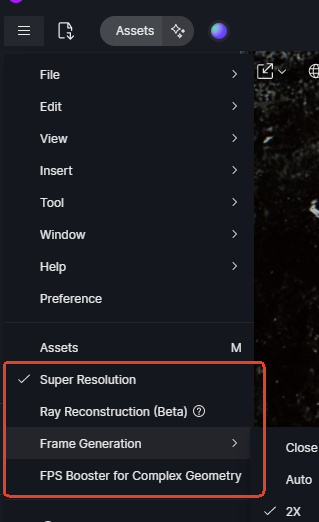
- Enable DLSS. Test the available settings to find a suitable balance between speed and image quality.
- Split the animation into shorter clips. This limits the impact of a failed render and lets you apply demanding effects only where needed.
- Update D5 Render. Install relevant patches if 4K exports freeze or fail.
- Consider a faster GPU last. D5 Render does not scale rendering across multiple GPUs, so prioritize one powerful card.
When Cloud Workstations Make Sense
If your render estimate stretches into days or weeks, a cloud workstation may help you finish sooner without tying up your own computer. Services such as iRender offer machines with RTX 4090 24GB or RTX 5090 32GB GPUs, so you can render 4K animations remotely while continuing to work locally. You can also rent two machines and render separate clips simultaneously, which may cut waiting time significantly. For more details, see this iRender article on D5 performance with the RTX 5090.
Long renders can still freeze or stall midway. Since rented machines may continue charging while no frames are being rendered, schedule regular progress checks for overnight jobs instead of leaving them unattended until morning.
Maximum Speed – Absolute Freedom. Take control of your VFX workflow with iRender’s dedicated GPU servers. Render with iRender →
FAQ
1. How long does D5 take to render a 1 minute 4K video?
It depends on scene complexity, export quality, and GPU performance. A 60-second video at 30 FPS contains 1,800 frames. At 10 seconds per frame, rendering takes around 5 hours; at 30 seconds per frame, it takes 15 hours. Measure your D5 Render time per frame with a short test to get a more reliable estimate.
2. Why is D5 4K video so much slower than 1080p?
A 4K video contains four times as many pixels as 1080p, but rendering can take considerably longer than four times the duration. High-resolution output puts more pressure on VRAM, which may slow performance when memory is limited. If you experience a D5 Render slow video, test your scene and monitor GPU memory usage.
3. Does a second GPU speed up D5 video export?
Adding a second GPU generally will not speed up D5 video export because D5 Render does not combine multiple GPUs to render a single job. A more effective option is to use one faster GPU. Alternatively, you can split the animation into separate clips and render them on different machines at the same time.
4. Why does my D5 video render stop halfway?
A render may stop because of memory limits, software issues, or a demanding scene that becomes unstable during export. Check VRAM usage and update D5 Render to the latest stable version. If you’re comparing D5 walkthrough render time RTX 5090 results, remember that faster hardware can help, but it cannot eliminate every software or scene-related failure.
See more: D5 Render on Cloud GPU for Animation and Walkthroughs

No comments